Run a NovusLens demonstration, then administer its records.
Chapters (6)
Follow this tutorial to start the Docker deployment, create accounts, import an organisation and connect its evidence. Continue with stewardshipStewardshipCare of recorded information, such as correcting or withdrawing entries. The action allowed depends on the record type and the reader’s role., notifications and preserving the installation.
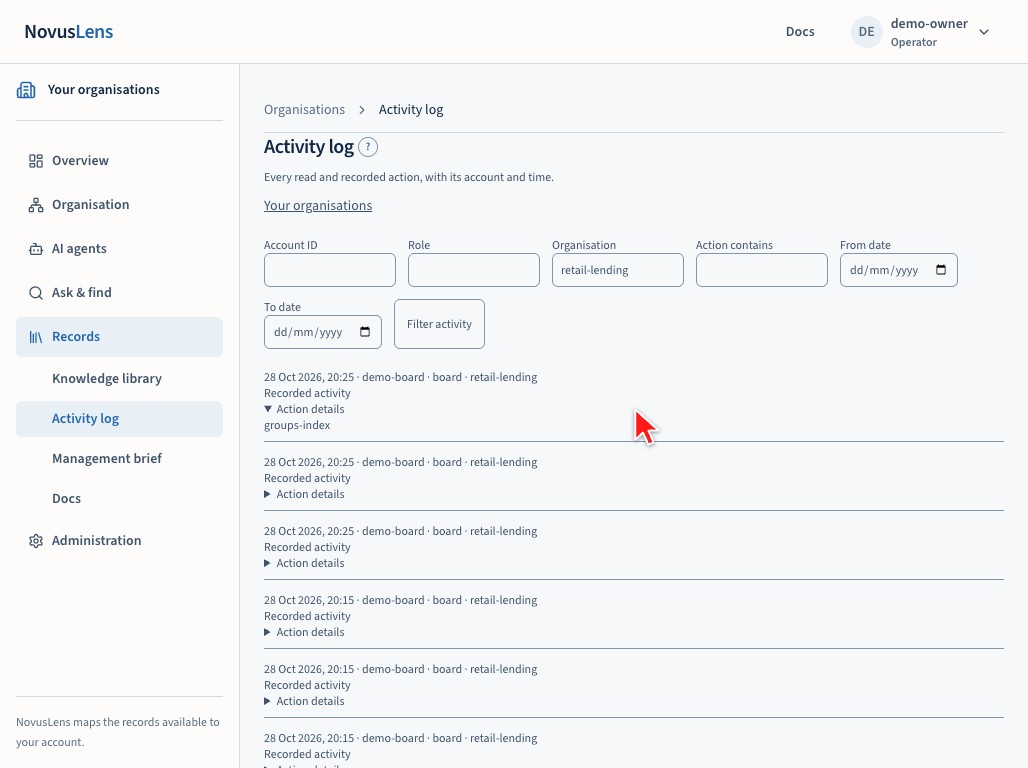
The Docker example is fictional Retail Lending. The Activity log screenshot shows the fictional Meridian GridMeridian GridThe fictional demonstration organisation used by the demonstration walk and its sample data. Nothing about Meridian Grid describes a real company. example from the source manual. They explain the same tasks; the organisations and records available in your installation may differ.
Read from prerequisites through sign-in before running administration commands. For a first demonstration, follow accounts and the chart import, then use the user tutorial. Finish at stop and preserve. Read troubleshooting when a step fails. The document, telemetryTelemetryMeasurements and activity records sent by a running system, such as ticket timings, network traffic or workflow results., agent-evidence, stewardship and notification sections are optional operator tasks for later use.
The five-layer Docker stack
| Layer | What it does | Docker access |
|---|---|---|
| Browser UI | Shows the twinTwinNovusLens’s model of one organisation, built from records about its teams, services and how they rely on one another. It is only as current as those records., evidence, questions and audit trail | http://localhost:3111, unless you choose another web port |
| Reasoning service | Answers questions and handles evidence and stewardship requests | Internal service reasoning:8500 |
| PostgresPostgresThe database software that stores the tables read by the NovusLens screens, along with document bodies, access records and protected personnel records. | Holds the queryable graphGraphA model made of units and links between them. In NovusLens it records teams, services and their dependencies., documents, identity links and audit trail | Internal service postgres:5432; persistent volume |
| MyceliumMyceliumThe application infrastructure underneath NovusLens. Its connected services exchange updates and keep the ordered structural log. meshMeshA set of connected Mycelium services that exchange updates and keep the NovusLens log. | Keeps the canonical structural commitGit commitA recorded set of changes. In a software repository it identifies a code version; in the twin log it records a change to the model or its evidence. log across three nodes | Internal services mesh-0, mesh-1, mesh-2; each has its own persistent volume |
| Model server | Supports interviews and model-backed questions | OpenRouter by default, or an optional local Ollama containerContainerA running program with its own packaged software and isolated environment, managed by Docker on the host. or another external model endpointEndpointA particular address on a service that accepts a defined kind of request. |
The initialisation job applies migrationsMigrationAn ordered change to a database's tables or rules. Applied migration files are recorded so the same file is not run again., loads the GuideGuideThe help pages inside NovusLens. They explain the pages, input formats and tasks in the version you use. They are product instructions, not evidence about the organisation. and creates the first operator. The projectionProjectionThe regular pass that brings the read model up to date with the canonical log. It runs every 30 seconds by default. service delivers evidence and refreshes the queryable records. Structural facts enter the mesh log and are copied into Postgres for reading. Documents and other database-held records also need preservation; the mesh log alone cannot rebuild the whole installation.
The UI binds to the Docker host’s loopbackLoopbackA network address that refers to the same host, such as 127.0.0.1. Other hosts cannot reach a service through that address. address. Use a browser on that host. Database and mesh ports remain inside Docker’s private network. External model endpoints, connected sources and subscribed notification receivers can receive the data their tasks require.
Prepare the Docker host
Prepare a Linux or macOS host with Docker, its Compose plugin and a running Docker engine.
The ./lens operator command needs Python 3.9 or newer on the host; most Linux and macOS hosts already have it.
On Windows, install WSL2 and run every command inside your WSL2 distribution.
Get the lens file from the download site . Ask Novus-i2 for the login and password.
The site shows the commands for the release you choose. They make a new installation directory, download lens into it and make it executable:
mkdir novuslens && cd novuslens
curl -fL -u <user> -o lens https://lens-download.vercel.app/lens/latest
chmod +x lens
Replace <user> with your login name. latest is the newest build on main. curl asks for the password.
For published images, lens is the only file you need to copy. It writes its embedded Compose files during setup.
No host Git, Node or Rust installation is required. You need internet access for image downloads.
Use a host account that can operate Docker and keep the installation files private.
The installer controls that host’s Docker engine through its socket.
./lens doctor./lens doctor checks Python, Docker, the Compose plugin and the installation, and names the fix for each failure. It changes nothing.
Without Docker, its fix installs Docker for you. On macOS that is Colima through Homebrew; on Ubuntu, Debian 13 or newer, Fedora and openSUSE Leap it is the distribution’s Docker Engine packages. On CentOS Stream, Rocky Linux and AlmaLinux it is Docker Engine from Docker’s own package repository.
To install, run doctor again with the flag for your host. Run it as your own account, not root: on Linux it uses sudo and adds your account to the docker group.
./lens --install-docker doctor   # Linux
./lens --install-colima doctor   # macOS
On Linux, your account joins the docker group during the install. If doctor then asks you to log out and in again, do that and run ./lens doctor again, so the new group membership applies.
When the host is ready, every check passes. A new installation shows installation as not initialised, and ghcr as a note until you sign in to the registry:
$ ./lens doctor
  ok    python       3.14.4 at /usr/bin/python3
  ok    docker       /usr/bin/docker
  ok    daemon       Docker Engine 29.1.3
  ok    compose      Docker Compose 2.40.3+ds1-0ubuntu1
  ok    source       lens only at /home/user/novuslens; dev and local need the source (git clone https://github.com/Novus-i2/lens.git)
  ok    installation /home/user/novuslens: not initialised; ./lens setup --init <mode> starts it (dev, local, local:<tag> or ghcr:<tag> (also remote:<version>))
  note  ghcr         no login found
                     next: A private ghcr.io pull asks for a token at a terminal and refuses without one. To sign in now, make a GitHub token with read:packages permission (https://github.com/settings/tokens), then run docker login ghcr.io, or read -rs GHCR_TOKEN && export GHCR_TOKEN before ./lens setup.
If you skip the install, ./lens setup offers it later. It prints each command and runs it only after you answer y.
On other Linux distributions, including Debian 12, Red Hat Enterprise Linux and its rebuilds, follow the Docker Engine installation guide that doctor names.
Run ./lens version and keep its build ID with the installation notes.
Run every following command from this installation directory.
The wizard asks for a private mesh network prefix. Use 10.239.58 only if its range does not overlap your Docker, host or VPN networks.
If you are unsure, ask your network administrator for an unused private /24 range.
Keep the selected mesh network unchanged once records exist.
For a first demonstration, use the published images your lens file was built for, and no model server.
Setup asks for your GitHub login and a personal access token with read:packages permission for GHCRGitHub Container RegistryGitHub’s service for storing and downloading packaged applications used by Docker..
The token is hidden during entry. You do not need a separate registry login command.
The installer keeps the login, token included, in .novuslens-registry.json in the installation directory, readable only by your account, so later deployments and resumes can pull again.
Treat that file as a credential: keep it out of copies and source control. Delete it to sign out.
Maps, records and imports that do not require a language modelLanguage modelSoftware that produces text from instructions and supplied context. NovusLens checks its answers against the records retrieved for the question. can then be explored.
For interviews, composed answers and contradiction reviews, configure a model server and suitable models.
The wizard offers OpenRouter (the default), no model server, an external endpoint, or a local Ollama container.
OpenRouter needs an APIAPIApplication programming interface: a defined way for one program to request data or actions from another. key. Create one at https://openrouter.ai/settings/keys before you run setup.
Memory and response time depend on the selected models and host; check their requirements before downloading them.
See configuration choices for image tags, models and a different Docker socket.
Configure, deploy and sign in
Configure the demonstration
./lens setupRun ./lens --help to list every operator command; each command also takes --help.
--init chooses the release once and records it in .novuslens.env; later commands run the recorded release.
Use --init ghcr:0.x.y for an immutable published release, --init local to build frozen images from the source, or --init dev for working-tree rehearsal.
An installation keeps its mode. To move a published installation to another release, run ./lens start --init ghcr:0.x.y.
The wizard asks these questions in this order:
- GitHub login and personal access token with
read:packagespermission. A published release asks these only when no GHCR sign-in is saved. - Web port on this host: keep
3111. - Who opens the web interface: choose
this-hostwhen only this computer opens it. Chooseproxywhen people on your network open it through your HTTPSHTTPSHTTP carried over an encrypted connection, so the contents are protected while travelling between the caller and the server. proxy; the wizard then asks which address the web port listens on. - Private mesh network prefix: keep the checked default, such as
10.239.58. - Initial operator login and a passphrase of at least 12 characters, entered twice. Store them in your password manager.
- Model server: choose
nonefor the first run. - Demo to load: choose
retail-lending, the illustrative Retail Lending demo. - Review advanced settings: choose
noto keep each saved or default value.
The wizard saves private configuration in .novuslens.env. Keep this file with the installation.
It then shows a summary and asks whether to deploy.
This recording shows a whole first setup with these choices, from the GHCR sign-in to the sign-in address:
Read the transcript or download the recording.
To leave the wizard at a question, press Ctrl+C in its terminal.
Wait for the sign-in address
Accept the deployment prompt. Wait for the installer to finish and print the browser address.
A successful deployment then opens the live monitor. Press q to leave it; the services keep running. Add --no-monitor to ./lens setup to exit after the deployment instead.
If interrupted, keep the same installation directory, configuration and volumes, then inspect and resume:
./lens status
./lens resume
Resume checks completed work before reusing it. A damaged journalInstallation journalA saved record of setup steps, their attempts and whether they started, completed or failed. It records progress, not a backup of application data. requires diagnosis; keep the original files and surviving records.
Open the twins index and sign in
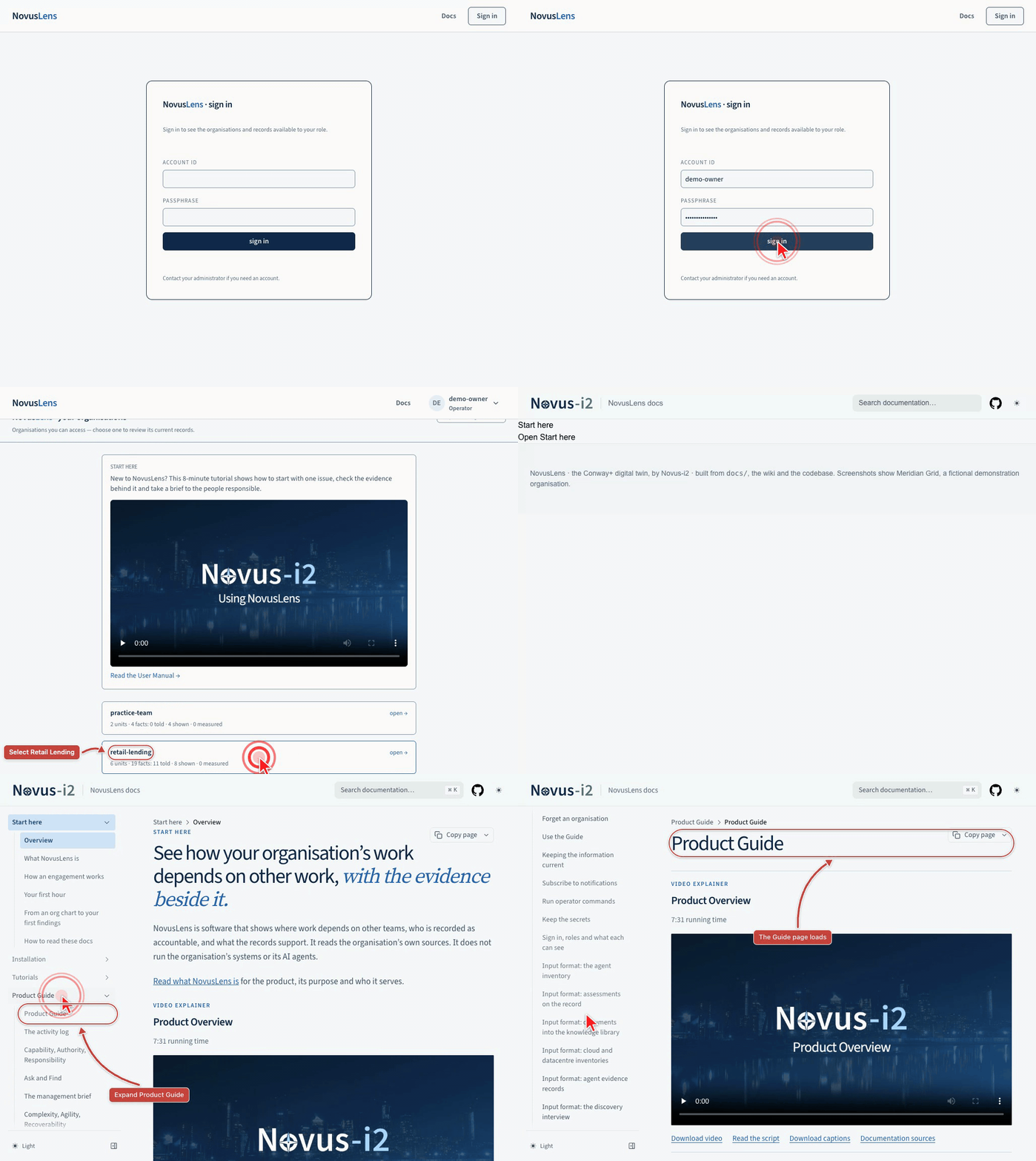
Open the printed address, normally http://localhost:3111/login, in a browser on the Docker host.
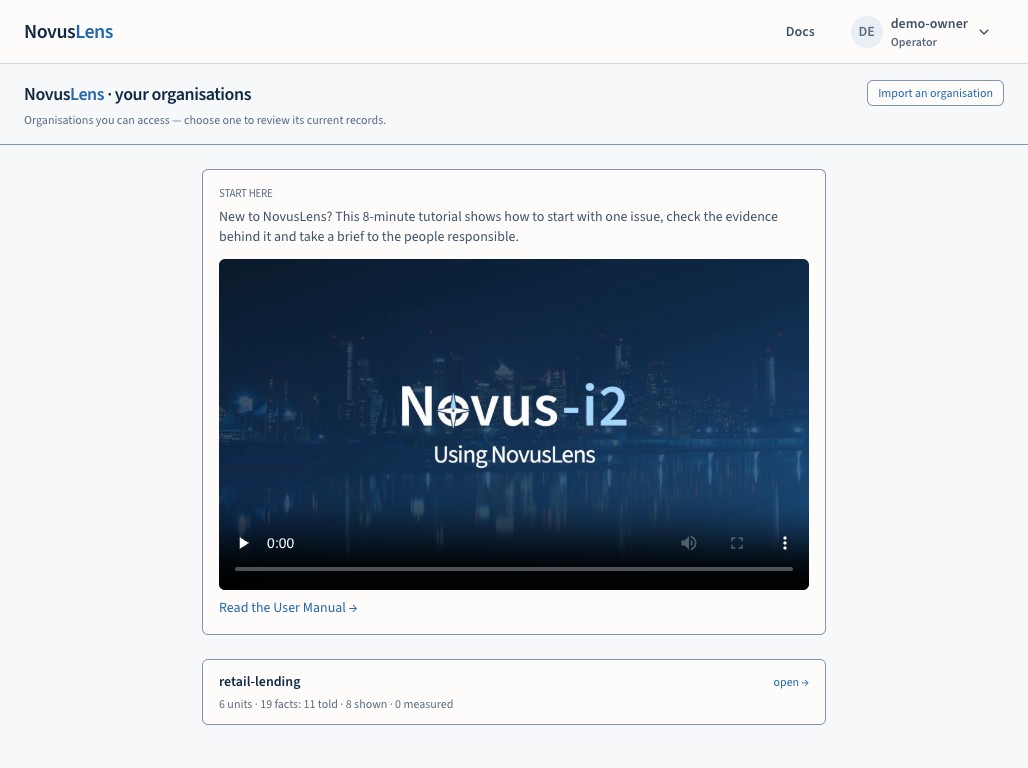
Sign in with the account you created. Select Retail Lending, then open Docs in the header.
Docs opens on Start here. In its sidebar, expand Product Guide and open its first page, to check the Guide pages load.
An empty installation starts with no demonstration organisation; import one through the browser.
Accounts & roles
The installer creates your first operator. Use it to create additional accounts; there is no self-signup.
For this Docker example, the organisation identifier is retail-lending.
For another organisation, open it and read the org= value in the browser address.
Keep the display name and identifier separate.
Run this command to create a read-only board account, replacing the example credential with a private passphrase:
./lens graph create-viewer --viewer demo-board --org retail-lending \
  --role board --passphrase '<private-passphrase>'
The command prints the account, role and organisation, plus whether a credential was set:
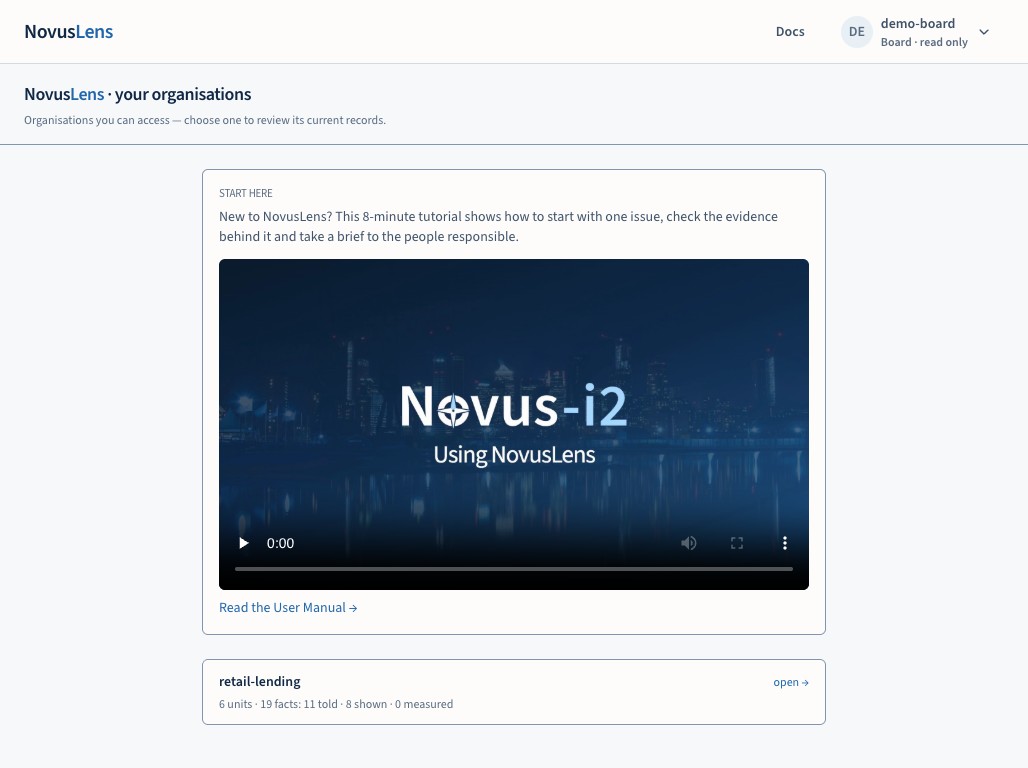
viewer 'demo-board': role=board org=retail-lending — credential setSign out, sign in as that reader and check the role before returning to operator tasks.
For other accounts, use the required role and optional unit scope. create-viewer refuses an existing account; change one with ./lens graph update-viewer, giving only the flags to change:
./lens graph create-viewer --viewer <handle> --org <org> \
  --role <cxo|board|bu-owner|infra|operator> \
[--scope-cell <cell>] --passphrase '<phrase>' # hashed; never stored plain| Role | Sees | Writes |
|---|---|---|
cxo | the whole org, meaning canonMeaning canonThe organisation’s supplied written descriptions of its operations, systems and terms. NovusLens stores these separately from records of teams, dependencies and measurements., audit | everything a steward may — import, ingestIngestRead supplied records or documents and add their information to NovusLens, after the required checks., retract, purgePurgeRemoving a stored document’s contents while keeping a record that it was removed and why. Conclusions that used it must be checked again. |
board | the whole organisation, resolution view and audit. The audit names actions and times; typed terms are withheld from board readers | nothing — read-only by construction; write affordances are not rendered |
bu-owner | their cellsCellA box on the map that stands for a team, service, supplier or AI agent. It is a unit you can inspect, not necessarily a department or a person. + scope chain only | contributions and retractionsRetractionThe withdrawal of a finding or meaning entry, with the reason recorded. The record keeps who withdrew it, when and why; it is not deleted. within their scope |
infra | the infrastructure slice | contributions within scope |
operator | every twin, every audit row | platform operations — accounts, imports, stewardship |
The installer creates the operator login you chose. Create each additional account for its intended organisation and role. Use the real account name when a command asks for a viewer.
Protect the installation secrets before deployment
The installer generates and preserves the application secrets in .novuslens.env.
The Docker services use the customer profileDeployment profileA setting that selects customer or development behaviour. Customer mode refuses development credentials and uses the signed-in session as the identity. and refuse missing or public development secrets.
The file also contains the database password and initial operator credential. Keep it private and outside source control.
| Secret | Purpose | Consequence of changing it |
|---|---|---|
CONWAY_SESSION_SECRET | Signs login sessions | Existing sessions end |
CONWAY_IDENTITY_SALT | Protects the sealed personnel links | Existing personnel mappings become unusable; retain the original value |
CONWAY_SERVICE_TOKEN | Authenticates the UI’s calls to reasoning | UI and reasoning need the matching new value |
MYCELIUM_GATEWAY_TOKEN | Authenticates calls to the mesh | All mesh nodes and application services need the matching new value |
Keep the secrets in your organisation’s approved secret store before importing sensitive records. Reconfiguration preserves them. A stop and restart retains them. Treat secret rotation as a planned operator task across all affected services; preserve the identity saltIdentity saltA secret value added before employee identifiers are turned into fingerprints. Keep the same value so later imports can still match existing people. with the matching recovery point. A login session supplies the viewer’s identity. A name in a URL or request body cannot replace it.
Run commands in the operator’s shell
./lens runs administration commands in the running reasoning container.
The container holds the installed graph, connectorConnectorSoftware that reads records from a source system, such as an incident tool. A customer-written file connects those records to teams or services in NovusLens. and reasoning modules, the configured database address and customer-profile secrets.
Its working directory is /app. This example reads command help without changing records:
./lens graph create-viewer --help./lens graph and ./lens connectors run the graph and connector command-line tools. Each takes a verb, then its flags; --org is an ordinary flag after the verb.
./lens exec -- <command> runs any other command in the container.
Accounts use ./lens graph create-viewer and ./lens graph update-viewer; the key-person check is ./lens graph keyperson; documents, acquisition, correction, agents and notifications are ./lens connectors verbs.
./lens reads the saved .novuslens.env and refuses with the fix when it is missing or readable by other users.
The connector CLICLICommand-line interface: commands you type into a terminal to operate software. reads the configured mesh address mesh-0.
./lens graph materialise and ./lens graph requeue need --host mesh-0 explicitly; ./lens graph keyperson reads the configured address.
The container’s 127.0.0.1 refers to that container; use host.docker.internal for a source on the Docker host.
Host files are not automatically visible inside this container.
./lens uploads each file given with --file, --mapping, --fixture or --enrolment into the container’s /tmp and passes the new path on.
It refuses a /tmp path that exists on this host, because inside the container /tmp names the container’s own file. Move the host file out of /tmp to upload it.
A /tmp path that does not exist on this host passes through unchanged, as a file inside the container. Any other path must be a file on this host.
A host path given with --out is written inside the container, then copied back to that host path when the command succeeds.
If the command wrote no file there, ./lens says so and exits with an error.
./lens removes the uploaded copies when the command ends. Keep the approved originals and their history outside the container.
Use ./lens graph --help or ./lens connectors --help to list the verbs, and ./lens graph create-viewer --help for one verb’s flags.
Put ./lens’s own --directory and --version after graph or connectors and before the verb.
Python 3.9 or newer is required on the host.
Replace angle-bracket placeholders with actual values. Square brackets describe optional flags; omit the brackets when using a flag.
Bringing an organisation in
Two paths, one discipline: everything enters on the rungRungOne of three levels of support for a recorded value: told, shown or measured. The level appears beside the value. its evidence earns.
The browser import
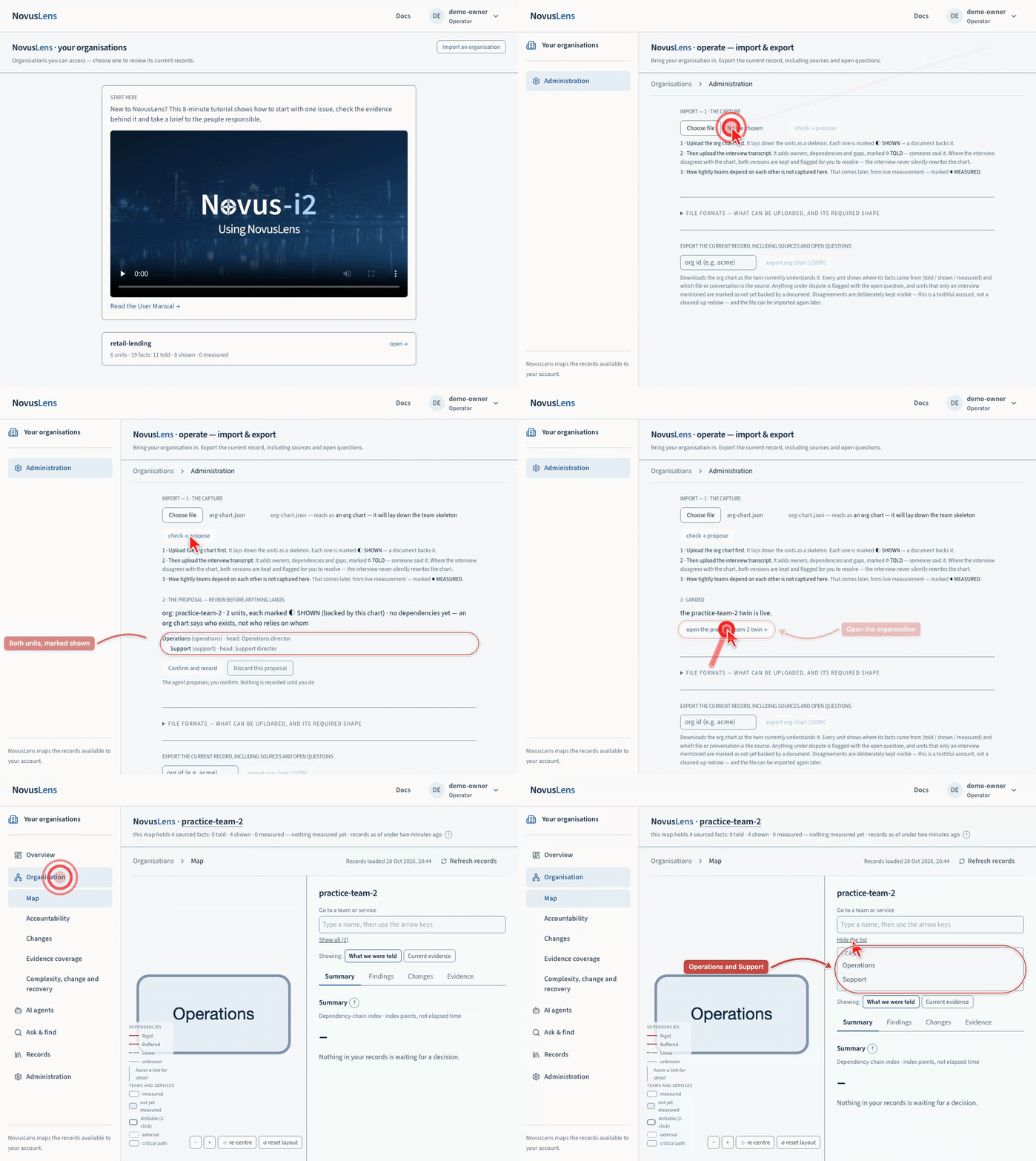
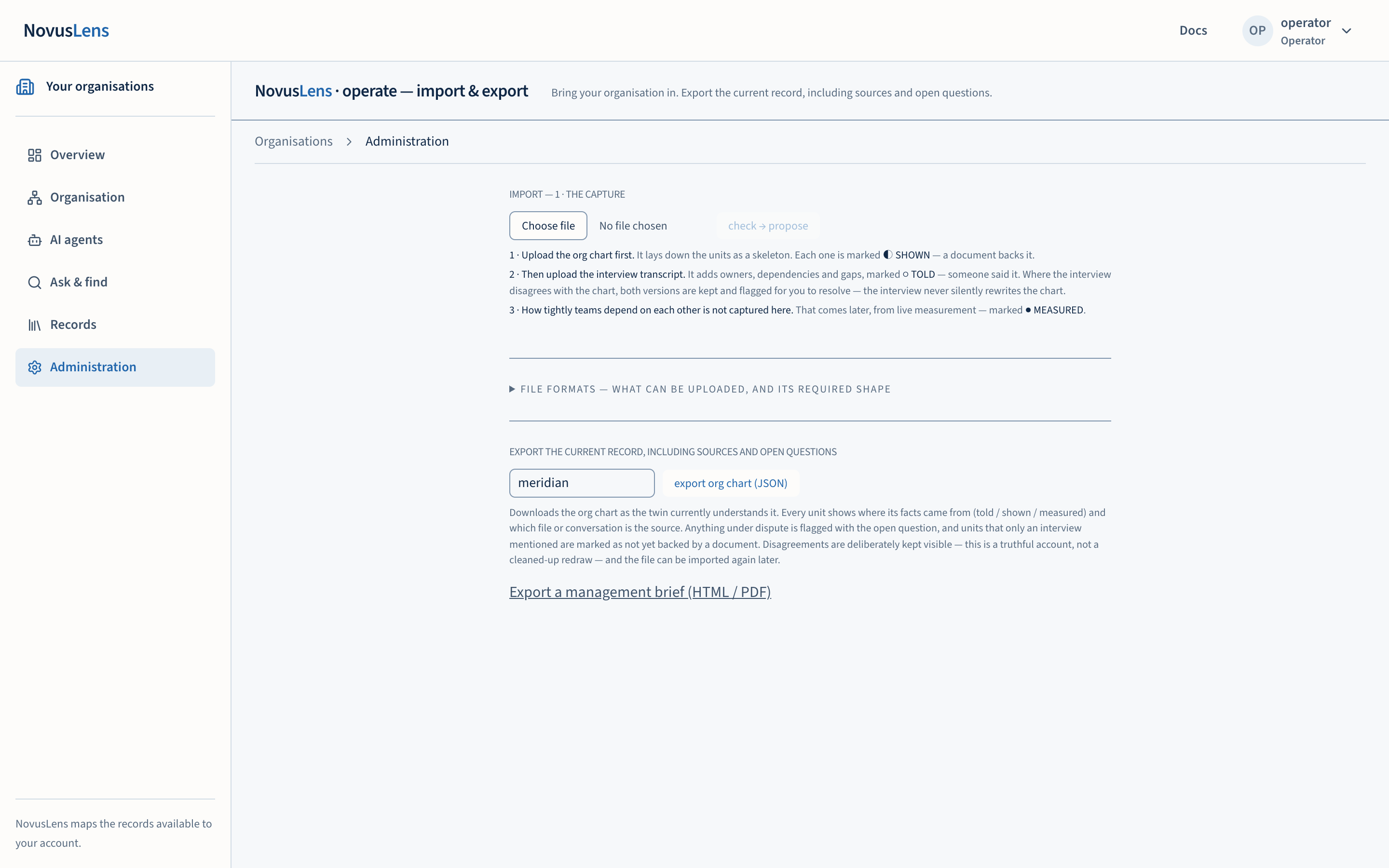
Sign in as the operator. Open Administration, or choose Import an organisation from the organisations index.
Prepare a reviewed JSONJSONJavaScript Object Notation: a text format for data, using named fields, lists and values. Configuration files and service messages use it. file with org and a units list. Each unit needs its own stable unit_id.
A parent must name another unit in the same file. Keep accountable ownership separate from responsibility and authority.
This fictional example imports a new organisation:
{
  "org": "practice-team",
  "units": [
    {"unit_id": "operations", "name": "Operations", "head": "Operations director"},
    {"unit_id": "support", "name": "Support", "parent": "operations",
     "head": "Support director", "responsibility": "Customer support",
     "granted_authority": "Agrees customer support priorities"}
  ]
}
Save it as org-chart.json, choose that file and select check → propose.
Review the proposal, then select Confirm and record. Nothing is recorded until you confirm.
Open the organisation from the success message. It opens on Overview; choose Organisation → Map to inspect its units and source records.
The map first shows the top-level units. A child unit, such as Support under Operations, appears when you drill into its parent, or choose Show all in the panel.
Retain the uploaded file: it supplies the document evidence behind the shown records.
This imports a separate practice organisation. For the reader walkthrough, sign out and return to Retail Lending as demo-board.
Use the user manual to investigate that organisation; demo-board is scoped to retail-lending, not practice-team.
An organisation chart supplies shown records. Interview statements supply told records; model-backed interview extraction requires a configured model.
Use the Guide’s Input format pages to prepare the required file shape.
If the import refuses a file, correct the named format or access problem before trying again.
Export the resulting record when you need a re-importable copy with disagreements preserved.
Start a new organisation with the engagement kit
A fresh customer org is stood up through the engagement kit: interview pack, inventory templates, domain taxonomyDomain taxonomyThe list of business areas, their owners and the teams or services that do the work in each area., ops-report and telemetry mapping templates. Use the kit to prepare your organisation’s reviewed inputs and retain their sources. The Guide’s Input format pages quote each template’s JSON shape. They cover interviews, organisation charts, cloud and datacentre inventories, domain taxonomies, people exports, assessments and agent inventories. Use the input page matching the file you will import, then correct any format problem the import reports.
Documents into the knowledge library
Operational documents — board notes, runbooks, procedures, compliance briefings — are ingested into the meaning canon, where agents ground their answers alongside the graph. Visibility defaults derive from who ingests: leadership → CxO + board only; a cell owner → that cell and its management chain. Widening later is an audited act.
./lens connectors document --org <org> \
  --viewer <authorised-account> --title "Board strategy note" --file ./note.md --page org/board
For the demo organisation, ingested by its owner, the command prints the entry reference and the visibility it chose:
$ ./lens connectors document --org retail-lending --viewer demo-owner --title "Board strategy note" --file ./note.md --page org/board
ingested 'Board strategy note' as 0c15eae330bf18e2905de98d by demo-owner → visible: {'roles': ['cxo', 'board'], 'cells': []}
Each ingest stores a citable source record, records its visibility and compares it with the graph. An entry naming a cell absent from the graph raises a findingFindingA difference in the records that needs a decision. It includes its sources and can describe a slow handoff, disputed fact or missing owner. immediately. Keep the approved original and the resulting entry reference with the import record.
Telemetry from real integrations
The measured rung comes from acquirersAcquirerA program that reads a customer's operational records, calculates quantities from them and records the results in NovusLens. that read operational systems
through their real APIs. The connector fixturesFixtureA prepared set of records used for a test or demonstration. A fixture is sample data, not a live customer's records. include simulated sources speaking ServiceNow and Jira API shapes.
Run those only as an explicitly labelled rehearsal; the Docker demo does not start them automatically.
For a connected source, use its reachable endpoint and your reviewed mapping.
Every simulated record carries an explicit marker. The twin labels the source accordingly: servicenow:host (simulated source).
For the ticket example, prepare customer_ticket_mapping.json with the approved queue and capability names:
{"groups": {"Support queue": {"capability": "customer-support"}}}Replace both names with ones your source and organisation actually use.
Ask the source owner for the base API URL and a read-only bearer tokenBearer tokenA secret value sent with a request to prove that the caller holds it. Anyone who obtains it can use it, so it must be protected. with permission to read the mapped tickets.
Keep the reviewed mapping in the installation directory; ./lens copies it into the container.
Replace the example endpoint and token in the acquisition command. Keep tokens out of shared transcripts and support packets.
./lens connectors acquire --org <org> \
  --kind servicenow --url https://tickets.example \
  --mapping ./customer_ticket_mapping.json --token <read-only-bearer-token>
After acquisition, run correct for the same organisation before relying on updated measured scores.
The projector then materialises and evaluates current records on its next pass.
See the worked sequence for explicit Docker commands.
The mapping fileMappingA customer-written file that connects names in a source system to teams or services in NovusLens. For scores, it also specifies the scoring rules. is customer-authored: which ticket groups belong to which cells, and which fields carry the timings. Lead timesLead timeThe elapsed time between starting a request or handoff and completing it. are derived over resolved tickets only; groups the mapping doesn’t cover are reported as unmapped — never guessed into a cell. For a real source, confirm its API shape, permissions and mapping with the source owner before acquisition.
The connector cookbook and its four kinds
Tickets are one kind of connector; the Guide’s telemetry mappings page covers each kind. Every kind has three parts: the vendor API, a customer-authored mapping, and the acquirer that reads it.
They share the same evidence rules: anything unmapped is reported, never guessed; a
simulated source declares itself and the label propagates. Use endpoints reachable from the container and copy each reviewed mapping into /tmp first.
The telemetry input formats give complete metrics, CIContinuous integrationAutomated checks run when code changes, usually including building the code and running tests. and composed mapping examples.
Choose the source-specific format and agree its calibrationCalibrationThe customer's own rule that turns raw figures, such as a gauge, a workflow history or an incident log, into a C/A/R score. A score moves when the calibration moves, and the change is recorded. before using these optional examples:
# metrics (Prometheus shape) → measured cell scores, via the org's own calibration
./lens connectors acquire --org <org> --kind prometheus \
  --url https://metrics.example --mapping ./prometheus_mapping.json

# CI (GitHub workflow-runs shape) → the DORA quantities computed from raw runs
./lens connectors acquire --org <org> --kind github \
  --url https://ci.example --mapping ./ci_mapping.json

# incidents (PagerDuty shape) — measures recovery and nothing else, so: compose
./lens connectors acquire --org <org> --kind composite \
  --source prometheus=https://metrics.example --source pagerduty=https://incidents.example \
  --mapping ./composed_mapping.json
The metrics and CI kinds score a cell’s Complexity, Agility and RecoverabilityRecoverabilityThe R in C/A/R: how well a team or service restores acceptable service after a failure. Recovery times and tested alternatives can supply evidence. through the mapping’s calibration. This is the organisation’s published rule for converting raw quantities into scores. In the default full-triple mode, a cell missing any calibrated input is refused whole, never padded. The composed acquire takes each axis from the source that measures it. Its provenanceProvenanceThe record of where a value came from, who stated it and when. Every value keeps this record. names every contributor. For example, use incident recovery measurements when a service’s own gauge does not measure actual recovery. Missing series remain missing. Choose another approved source or leave that axis unavailable. Review mappings and calibrations with the customer before interpreting a score. The Guide’s telemetry mappings page gives worked examples for each kind.
Complexity, Agility and Recoverability components (controlled preview)
The component assessment now feeds current cell indicators through explicit scoped calibrations; customer acceptance remains outstanding. The map and domain views read the same current indicators. Declared and historical triples remain separate. Use docs/mvp/car_customer_acceptance.md to record customer evidence and sign-off; local test results alone do not establish customer acceptance.
The Docker initialisation job applies schema migrations. With the deployment running, open
/car?org=YOUR_ORG&cell=YOUR_CELL through an authenticated session.
An operator exports the current evidenceCurrent evidenceA view that uses only measurements recent enough to count. The “What we were told” view uses recorded statements instead. template before importing approved cell aggregates;
imports must carry its expected artifact ID. A stale version is refused: export again and reconcile.
The capture form records a declared dependency at told, not measured.
Mappings may opt into "partial_axes": true to acquire only supported axes.
Use the existing acquire, correct and materialise sequence. Missing axes remain absent; the acquisition
count is axis records, not cells. Each source keeps its own calibration and expiry. Review these
records on the component page. Full-triple mappings also publish current independent axes.
After changing an input or calibration, repeat acquisition, correction and materialisation before reviewing the current indicator.
Add a reviewed calibrations entry for each supported axis and scope, citing its document,
exact membership and required population identities. See the component import contract
for the import contract. Missing inputs or changed membership withhold the affected indicator.
Agree observation windowsObservation windowThe period in which a measurement counts as current. The default is 30 days. After it passes, the measurement remains as history and is counted as expired., units, population identities, mandatory dependencies, service recovery
objectives and evidence owners before import. Resolve overlapping aggregates at source. Use approved
team aggregates, not raw personnel or invoice records. An archive preserves the assessment inputs
and evaluation time for replay; it is not a backup of the deployment. Consult the implementation note
for endpoint contracts, permissions and the completed expiry, purge and desktop checks.
Move a measured score with a recorded calibration edit
A calibration explains how a measured quantity becomes a score.
For example, a recovery time of 5.8 hours at five points per hour gives 100 − 5 × 5.8 = 71.
At two points per hour, the same observation gives 88.4, rounded to 88.
The observation did not improve; the organisation changed its interpretation of that observation.
- Copy your approved mapping to a new, versioned file.
- Review the recovery coefficient with the organisation’s responsible person.
- Record why it changed. Retain the original mapping and source records.
- Acquire with the revised mapping from the same approved sources.
- Run correction, materialisation and the engine, then compare the score and its provenance.
./lens connectors acquire --org <org> --kind composite \
  --source prometheus=https://metrics.example --source pagerduty=https://incidents.example \
  --mapping ./reviewed-mapping.json
./lens connectors correct --org <org>
./lens graph materialise --org <org> --host mesh-0
./lens graph engine --org <org>
Each command runs in the reasoning container; see the operator shell. Substitute your source endpoints. The example calculation describes the source manual’s simulated records, not the Retail Lending seed. To return to the earlier interpretation, repeat acquisition and correction with the original reviewed mapping. Keep simulated sources labelled simulated; a score change does not turn them into customer performance evidence.
The sealed key-person risk check
When a measured critical-path cell has one to four mapped people, the twin raises a key-person-risk finding.
Cells with zero mapped people are skipped; this check does not establish missing ownership.
It names the cell and the privacy threshold, never the count or person.
In a small team, an exact count could identify someone.
The check uses critical_path_owner_count to read a count from the sealed personnel mapping.
The general cell_headcount read applies the privacy floorPrivacy floorThe rule that a unit with fewer than five mapped people is shown as a small team, never as a number. The key-person finding says fewer than five and never says who.. Disposition belongs to the accountable ownerAccountable ownerThe person recorded as answerable for a team, service or agent. NovusLens does not assume that this person is also the one who runs it day to day..
./lens graph keyperson --org <org> # run the check on demandFor any personnel integration, perform a seal probe: ask for the name, as every role, the board included. The identity is stored as a saltedSaltExtra data mixed into a value before its fingerprint is calculated. It makes matching or guessing the original value harder. hashHashA fixed-length fingerprint calculated from content. Comparing fingerprints helps detect changes and match records.. If a name, handle or email appears in any answer, finding or screen, treat it as a critical defect. Handle it with the same urgency as a document exposed beyond its permitted audience.
The agent estate
Operational AI agents enter the twin from their AgentFactsAgentFactsA signed statement from an agent about its allowed work, its permissions and the person answerable for it. — each agent’s published statement of what it may do and who answers for it (file shape and a minimal example: the Guide’s agent inventory page).
Sign in as the operator and open Administration. Under Load the agent inventory, enter the organisation id and choose the JSON file. The page reports how many signed agents it mapped and how many hand-typed entries you attested.
The rungs stay honest here too: a bundle signed by its publishing platform lands at shown. A hand-typed entry lands at told, attested by the signed-in person who loaded the file. A document that fails to verify against its own key becomes a finding, not a quiet acceptance.
A customer installation takes platform-signed AgentFacts only from the estate’s boundary feed, with each subject’s key enrolled (see Measured behaviour from the live estate):
./lens connectors boundary --org <org> --gateway <estate-host>:<gateway-port> --enrolment <file>A file with signed documents and no enrolled keys is refused, through Administration or the command line. The command line has no signed-in person, so it refuses hand-typed entries too. Load those through Administration. AI agents then reads declared authority beside observed behaviour; the gap is the evidence.
Declaring a remit in the product
A customer with no evidence source yet can still record what each agent is for. Load the agent inventory first (Administration → Load the agent inventory), so each agent and its cell are on the map. Then, signed in as the operator, open AI agents in the organisation’s sidebar and expand Declare a remitRemitA written list of an agent’s allowed actions, resources and destinations for information. The list states whether it is complete. (Guide: Declare a remit in the product). The form shows even before any remit is recorded. Opening it creates the installation’s product source and signing key, and the form prints that key and the enrol command. Postgres holds the key; it signs only declarations approved in the product. Enrol the source, bind each agent to its cell and name each responsible person as a remit issuer. Then activate it with the actual operator login chosen during setup:
./lens connectors agent-source enrol --org <org> --source novuslens-declarations \
  --public-key <key shown on the panel> --bind <agent>=<cell> \
  --record-type remit_declaration --record-type correction --record-type withdrawal \
  --remit-issuer <responsible person's viewer id> --environment production --out product-source.json
./lens connectors agent-source activate --org <org> --viewer <operator-login> --enrolment product-source.json
Keep product-source.json with the installation’s other approved records.
The responsible approver must be an enrolled remit issuer. They must also own the agent’s cell or be the accountable executive. An operator may approve only on that person’s recorded behalf, never alone. A refusal says which check failed. What is approved lands at told, labelled declared in product, and is compared with activity like any other remit. It is a declaration of intent: the product deploys no control, and whether the runtimeRuntimeThe software that runs a model or agent. A model runtime answers model requests; an agent runtime carries out the customer's agent actions. holds the agent to it is a separate question, answered by evidence.
The key, and who holds it. The product key is a row in this installation’s
database, unencrypted. Whoever holds the database or a backup holds the declaration signer, so a
product-signed declaration attests this installation and nothing independent of it. Rotate it from
the panel (operator only) or with POST /remits/product-source/rotate; nothing approves
until you re-enrol the source with the new key and activate. Approvals run one at a time per agent. The database permits one approved product declaration per agent.
Declaration routes cover only agents in the caller’s cells.
Delivery and operator settings. Incoming batches are stored durably as stored-pending-projection.
The Docker projector service delivers them on its next pass and records the evidence-delivery stage in readiness.
Two operator settings belong to the versioned policy:
fleet_window_ms: the derived-finding window, from one minute to one day; default fifteen minutes.evidence_horizon_ms: the organisation’s evidence horizon, from one hour to one year; default thirty days.
Set both through activation:
./lens connectors agent-source activate --org <org> --viewer <operator-login> \
  --setting fleet_window_ms=900000 --setting evidence_horizon_ms=2592000000
The settings are recorded and replayable. Sources cannot supply them.
Catalogue, export and deployment report. The panel holds the customer’s versioned business-activity catalogue, with ownership and gaps stated. The accountable executive or operator approves it. An approved declaration can export a CedarCedarA language for writing rules about who may perform an action on a resource. NovusLens can generate files in this format for the customer to review. or RegoRegoA language for writing rules that a control system can check. NovusLens can generate files in this format for the customer to review. artefact. It names unsupported features and carries a digest identifying its contents. Release checks evaluate the generated clauses against Cedar and OPA. This produces an engine-checked draft, separate from evaluation in the customer’s runtime. The customer decides how to evaluate and deploy it; NovusLens does not deploy it.
Record each intervention case’s outcome criterion on the versioned policy.
The agent-source criterion command takes --case, --name, --unit, --window-start, --window-end and --expected.
Run it as ./lens connectors agent-source criterion --org <org> with the approved case values.
Enrol a runtime source for policy_deployment records before accepting its signed deployment reports.
The panel labels these deployment reported, naming the reported enforcement points and claimed coverage.
It keeps export generated, deployment reported and enforcement observed separate.
Measured behaviour from the live estate
Connect a running estate through its published boundary feedBoundary feedRecords supplied by the customer’s own systems about activity at the edge of an agent or service. NovusLens reads those records; it does not watch the agent.. The Docker demonstration does not start the source manual’s mock estate automatically. For a rehearsal, have the estate operator supply a running feed and label it simulated. For a customer estate, use its approved gatewayGatewayA service that accepts requests and passes them into another system. The Mycelium gateway gives NovusLens access to the mesh. address:
./lens connectors boundary --org <org> --gateway <estate-host>:<gateway-port>The acquirer reads the estate’s published AgentFacts and computes findings from the available behaviour records. It does not operate the estate. Forged documents are refused at ingestion. A mock feed declares itself; findings derived from it carry (simulated estateSimulated estateA set of example agents supplied for testing and demonstrations. Their findings carry the label “(simulated estate)”. Real customer reports do not carry that label.). A stopped estate’s stale entries are skipped with a warning.
Boundary evidence remains current for three feed refresh intervals after the entry was written.
Schedule acquisition more frequently than that window.
When support lapses, findings are withheld with support-lapsed until current supporting evidence is acquired again.
A container restart does not restart an external estate or schedule its feed acquisition.
Retract records and keep the audit record
Every stewardship act requires a steward identity (cxo or operator), takes a reason, and lands in the audit record. Nothing is deleted from the log — retracted things vanish from every surface while the record keeps who, when, and why.
| Act | Endpoint | Effect |
|---|---|---|
| Retract a finding | POST /steward/retract-finding | gone from every surface; who/when/why kept |
| Retract a chat session | POST /steward/retract-session | a whole told-conversation’s facts withdrawn |
| Purge a document | POST /steward/purge-artifact | body removed, tombstoneTombstoneA retained record that says content was removed, when it was removed and why. The removed content itself is no longer available. kept; every fact citing it drops down the ladder |
| Retract a meaning entryMeaning entryA stored written account supplied by the organisation, such as a policy or definition. Answers can cite it without treating it as a measured fact. | POST /meaning/retract | entry withdrawn; the sweep clears its findings |
| Deep coherence sweep | POST /steward/deep-sweep | Compares recorded statements with the graph captured at the start. Two independent questions assess each proposal. Confirmed contradictions and UNRESOLVED proposals become findings for humans. Unanswered comparisons remain counted as unevaluated after a retry. The report says partial or failed, with counts in the audit. No findings is not proof of consistency. Model processing can take minutes |
| Check how findings are scoped | ./lens graph finding-scope --org <org> | Counts findings by audience: one team, dependency endpoints, the organisation, or full-view readers. Lists findings with no declared scope. Such a finding is shown to executives, the board and operators only, never to a team owner, until it is classified |
| Read the audit trail | GET /steward/audit · Records → Activity log in the organisation’s sidebar | every read and action made through the browser or the service, with viewer and reason. Command-line connector runs, such as ./lens connectors document, are not recorded there yet (#235) |
| Forget an organisation | ./lens forget-org <org> --reason '<why>' --yes | Erases the organisation’s database read modelRead modelThe database tables used by the map, Ask and Find. NovusLens rebuilds these tables from its history of recorded changes., evidence bodies, identity joinSealed identity joinStored links between employee fingerprints and teams or services. The fingerprints replace readable employee identifiers. Product pages do not show the links for individual people., accounts and audit rows. Mesh commits and earlier backups keep it. See the limits below |
The Guide. The initialisation job loads the release’s config/guide.json into the installation.
The current interface opens the documentation through Docs. Guide pages are product documentation; they do not contribute evidence or findings.
Erasure has limits. Retracting a record preserves its audit history.
forget-org is the operator’s erasure act for one organisation. It runs inside the running installation and needs a reason and --yes.
It does not remove the organisation’s commits from the append-only mesh log.
Backups taken earlier still hold the organisation. Delete or re-take them as the operator agrees.
A forgotten identifier cannot be used again: to import the organisation again, give it a new org identifier.
Removing shared volumes can affect every organisation in this installation.
Notification subscriptions, deliveries and receivers
Use the actual operator login chosen during setup in each notification command. An operator subscribes a receiver endpoint to selected finding kinds. A notice is issued when a matching finding opens with current support. If a previously notified finding loses support, another notice says support-changed. Findings are notified; operations and case outcomes never are. A withheld finding is never pushed as news.
./lens connectors notify subscribe --org <org> --viewer <operator-login> --endpoint https://receiver.example/hook --kind fleet-incident --kind remit-drift
./lens connectors notify poll --org <org> --viewer <operator-login> --base-url http://localhost:3111
./lens connectors notify deliveries --org <org> --viewer <operator-login>
Each command prints one summary. On a fresh installation with no open findings, the poll finds nothing to send:
subscribed 4ce5cea402fa2b8c → https://receiver.example/hook (2 kind(s), scope org-wide)
0 candidate(s) · issued 0 · refused out of scope 0 · failed 0
  issued means sent, never that anyone received or read it
no deliveries recorded for org 'retail-lending'
notify deliveries lists one line per attempt: its time, outcome, finding and detail.
The Docker stack does not schedule notification delivery. Run notify poll for one delivery pass.
Set --base-url to the browser address printed by your installer, using your chosen web port.
For ongoing delivery, arrange an operator-managed schedule or a supervised notify watch process with the same viewer and browser address.
Restarting the application does not create that schedule. Check delivery outcomes after a pass.
Receivers are bounded: never a cloud metadata, link-local or loopback address. Inside the installation, a loopback address is the service’s own container, so give the receiver’s network address. A failed delivery retries with bounded backoffBackoffA delay before retrying a failed operation. The delay usually grows after repeated failures to avoid making an outage worse. and each attempt is recorded. Issued means sent with the recorded outcome. It does not prove anyone read or acted on the notice. A notification is never an intervention. The latency is shown, not promised: one projection interval plus one poll.
Preserve the customer Docker installation
Use the installer to inspect and manage the saved installation:
./lens monitor
./lens status
./lens logs
./lens stop
./lens start
Monitor shows live service health, analysis age, model-server readiness and the setup journal. Press m for the mesh nodes and d for the read model’s records. It opens after each successful deployment. Press q (or Ctrl+C) to leave it; the services keep running.
Status prints the setup steps and then one line per container: its service, state and health.
Stop retains the named Docker volumes, including Postgres and all three mesh stores.
Start returns to the same installation and checks the recorded work.
Use resume after an interrupted setup; preserve .novuslens.env, the installation journal and the volumes.
A normal stop is not a backup against disk loss or volume deletion.
Back up and restore both primary stores together
Take a backup with ./lens backup, and restore from it with ./lens restore.
One archive holds both primary stores together, so a restore never separates the read-model cursor from the log it describes.
./lens backup [DEST]
./lens restore <archive.tar.gz> --yes [--allow-release-mismatch] [--replace-env | --allow-env-mismatch]
Backup. The command pauses the three mesh nodes while it copies the volumes, takes the database dump, then starts the nodes again. The archive is consistent, because the log is never behind the dump. The other services keep running, and the pause lasts seconds. DEST defaults to backups/ inside the installation directory.
It must be inside that directory, because the installer container sees only that directory.
The command writes DEST/novuslens-<timestamp>.tar.gz. The archive holds:
- A
pg_dump --cleanof the Postgres service: evidence bodies, meaning entries, identity links, accounts and audit records. - All three mesh volumes: the canonical commit log and its durable state.
- The
installation-statevolume and the installation directory’s.novuslens-install-state.json: matching initialisation and installer journals. - The release manifestRelease manifestThe file recording the exact software versions and fingerprints used for a NovusLens release candidate. Installation checks compare files against it., the image tag and the source commit.
.novuslens.env, with the original identity salt and credentials, and the installation type.
The archive holds the secrets, so only your user can read it (mode 600). Keep each archive under separate access control and store a recovery copy away from the host. The archive leaves out any local model volume and approved input files. Preserve those by your own means.
Restore. The command ends with “Refused; nothing was changed.” in any of these cases:
--yesis absent..novuslens.envdiffers from the archive’s copy. The message names the differing settings, never their values.--replace-envputs the archive’s copy in place and keeps the replaced file inbackups/.--allow-env-mismatchkeeps the current file.- The archive’s
.novuslens.envbelongs to another installation directory. - The archive is an older one without
.novuslens.env, and the installation has no.novuslens.env. - The archive’s image tag differs from the configured tag.
--allow-release-mismatchoverrides this. - The archive lacks any one of the stores.
Without --yes, the restore stops before it changes anything:
$ ./lens restore backups/novuslens-20261028T124239Z.tar.gz
Restore replaces the database and all four state volumes. Add --yes to confirm. Refused; nothing was changed.
When the installation has no .novuslens.env, for example after ./lens delete, the restore needs no setup --init. It puts the archive’s .novuslens.env and installation type in place first. If a later check refuses, it removes them again.
Otherwise the restore runs in this order:
- It takes a pre-restore backup into
backups/pre-restore-<timestamp>.tar.gz. On a host with no volumes it skips this step and says so. - It stops the services.
- It restores the four volumes and the database together.
- It starts the installation again: bootstrap
init, then every service. It never pulls images and never prompts.
The command prints one line for each step, then the path of the pre-restore archive. The last line confirms the result:
$ ./lens restore backups/novuslens-20261028T161139Z.tar.gz --yes
Paused mesh-0, mesh-1, mesh-2 for the copy; they restart afterwards.
Stopped the services.
Restored the four state volumes and the database.
Started the services; every one is healthy.
The state before the restore is kept in /home/user/novuslens/backups/pre-restore-20261028T161411Z.tar.gz.
Restored; the installation is running. Run status to confirm.
If an image is missing on the host, the command stops and tells you to run ./lens resume to prepare the images. Then restore again.
A partial restore separates the read-model cursor from the log, so the command never performs one. Use the same installation directory and configuration for a restore. If the restore fails, keep the surviving files, volumes and the pre-restore archive unchanged for diagnosis.
Check sign-in, organisation records, evidence, Guide pages and freshness before relying on the restored installation.
Run ./lens status to confirm.
What is tested. The container rehearsal in continuous integration takes a backup, destroys the volumes, restores, and waits for a healthy installation with the cursor and records unchanged. That is all the rehearsal shows. It does not show a restore on another host. Test a restore of your own archives before you depend on them.
Upgrade and return to a previous release
Record the build ID from ./lens version, saved image selection and private configuration before planning an upgrade.
For source builds, also record the checkout’s commit.
Each main push runs quick checks and publishes all six images as latest, without a container rehearsal.
Successful nightly builds and rehearsals publish nightly images and move the Git tag nightly.
Published releases build and rehearse all six images before publishing immutable 0.x.y tags.
Release publication leaves latest unchanged.
A safe return requires matching code, database, mesh data, installation journals and secrets from before the change.
Take a backup before you upgrade: ./lens backup. To return, run ./lens restore with that archive.
The restore refuses an archive from another image release unless you pass --allow-release-mismatch.
Configuring another image release and resuming deployment is not a downgrade. An older image does not undo a newer database migration.
For a release change, agree the target with your operator, take a backup and keep the archive. Note the build ID and the saved image selection first, then back up:
$ ./lens version
lens d970cf2d30ab
installation /home/user/novuslens: ghcr:latest
$ ./lens backup
Paused mesh-0, mesh-1, mesh-2 for the copy; they restart afterwards.
Backed up the database, 4 volumes and .novuslens.env (77643 bytes). The archive
holds the secrets, so only you can read it; keep it private.
/home/user/novuslens/backups/novuslens-20261028T163141Z.tar.gz
The download site lists every published release, with the login you used to get lens.
Its button names the latest official release, and Need another build? lists the other 0.x.y tags.
latest follows every main push, so it is often newer than the latest official release.
Moving from latest to a 0.x.y tag can therefore be a move to an older release.
An older release refuses a setting it does not read, names the line and changes nothing; restore your backup to go back.
An installation on latest upgrades in place: after the backup, run ./lens start, which pulls the newest latest images every time.
If your NovusLens contact supplies a newer lens file, replace it first and run chmod +x lens.
Ask your NovusLens contact for a release’s notes.
Run ./lens start --init ghcr:<tag> in the same installation directory, with the agreed release as <tag>.
It records the new release in .novuslens.env and keeps the saved credentials and network prefix.
It ends with one ok line per installation check and the sign-in address.
Then run ./lens doctor; every check prints ok. Check sign-in, records, evidence, freshness and Guide pages.
If a step fails, retain the diagnostic output and restore the backup before trying another release.
What the deployment pins
Record the build ID from ./lens version, the saved image selection and the private configuration used for this installation.
For dev or local, also record the source checkout’s commit.
Keep the generated Compose files, compose.yml and compose.dev.yml beside .novuslens.env in the installation directory, with those notes.
They identify the application and storage layout when you return to this demonstration or arrange a recovery procedure.
The twelve gates
The repository defines twelve release checks for maintainers. For an operator assessing a release, ask the demo provider for the recorded results and source commit. Check that the record covers the version you are using. The release-check reference explains each check’s scope and the recorded results.
For this Docker demonstration, use installer status, service logs, sign-in, records, freshness and documentation as described above.
Troubleshooting
Start with ./lens doctor in the installation directory.
On a running installation every check passes, including the profile, the release, the Guide, the model, the schema and the network exposure:
$ ./lens doctor
  ok    python       3.14.4 at /usr/bin/python3
  ok    docker       /usr/bin/docker
  ok    daemon       Docker Engine 29.1.3
  ok    compose      Docker Compose 2.40.3+ds1-0ubuntu1
  ok    source       lens only at /home/user/novuslens; dev and local need the source (git clone https://github.com/Novus-i2/lens.git)
  ok    installation /home/user/novuslens: ghcr:latest
  ok    profile      customer profile with customer secrets
  ok    release      mycelium-py 0.2.4 from the wheel the manifest records (c7ca4410429b…)
  ok    guide        62 pages for stage3-rc20
  ok    model        no model server configured; browsing and import work without one
  ok    sdk-source   the pinned wheel, not a checkout
  ok    schema       current at 0051_network_flow_observations.sql
  ok    web-bind     web interface is bound to loopback
  ok    gateway      internal services are not published
  ok    ghcr         the installer's saved login in /home/user/novuslens/.novuslens-registry.json
A failed check prints its fix under the line. Then use the table below.
| Symptom | Next action |
|---|---|
| Installer cannot reach Docker | Start the Docker engine; check ./lens doctor and the socket path |
| Setup is interrupted | Run status, keep the original configuration and volumes, then run resume |
| Web port is occupied | Run configure, retain saved credentials and network prefix, choose another web port, then resume |
| Mesh or service health check fails | Read ./lens logs; retain the support details before retrying |
| A model is unavailable | Check the chosen endpoint and model names through configure; deploy again with the agreed settings |
| An answer takes time | Read progress and elapsed time; response time depends on the model, hardware and question |
| An answer says evidence is insufficient | Inspect its named gaps; import or connect the missing evidence |
| Sign-in fails or the session expires | Use the configured login, check the address and sign in again |
| A journal is damaged | Keep it, the configuration and all volumes intact; collect diagnostics for the installation operator |
| An imported record differs | Inspect its source, evidence rung and observation date before deciding what to change |
Collect the redacted diagnostic packet for a support request.
Never share .novuslens.env or its secret values in a support message.
Next steps
- Read Operating for the install, run, back-up and upgrade path in one place.
- Start or stop an installation with Start, stop and status.
- Return to Troubleshooting when a command refuses.