What the organisation has written down, and who can read it.
The knowledge libraryKnowledge libraryThe organisation’s written procedures and definitions. Each entry records its source, date and who can read it. NovusLens cites these entries as supplied information. holds statements that people in the organisation have recorded about how it works: procedures, definitions and notes about a team. Each entry names who supplied it, when, and which roles can read it. An entry is the organisation’s own account. NovusLens cites it. It does not verify it.
What you will achieve
By the end of this page you will be able to:
- find the knowledge entries your account can read;
- open the original text of an entry and see who supplied it;
- check the audience an entry reaches before you rely on it, or before you add one;
- add an entry about your own teams, if your role allows it;
- retract an entry you should not have added, if your role allows it.
Before you start
Sign in and choose an organisation. Select Records, then Knowledge library beneath it in the navigation. The library opens for the organisation you are viewing. An older address, /meaning, opens the same library.
You see only the entries your role may read. If the library says “No organisational knowledge is available to your account yet”, nothing has been recorded that your role can read. That is not evidence that nothing has been written.
Steps
- Select Records, then Knowledge library.
- Read the entries. Each card shows its title, the time it was recorded, and a line that gives the author and the audience.
- Select Read the source entry to open the original text. The text appears as its author wrote it. The page displays the text without running any code it contains.
- To see the related team or service, read the related teams part of the line. Teams are named by their labels.
- Where an entry came from an attached document, the line shows Source entry. Select it to go to the source text on the same page.
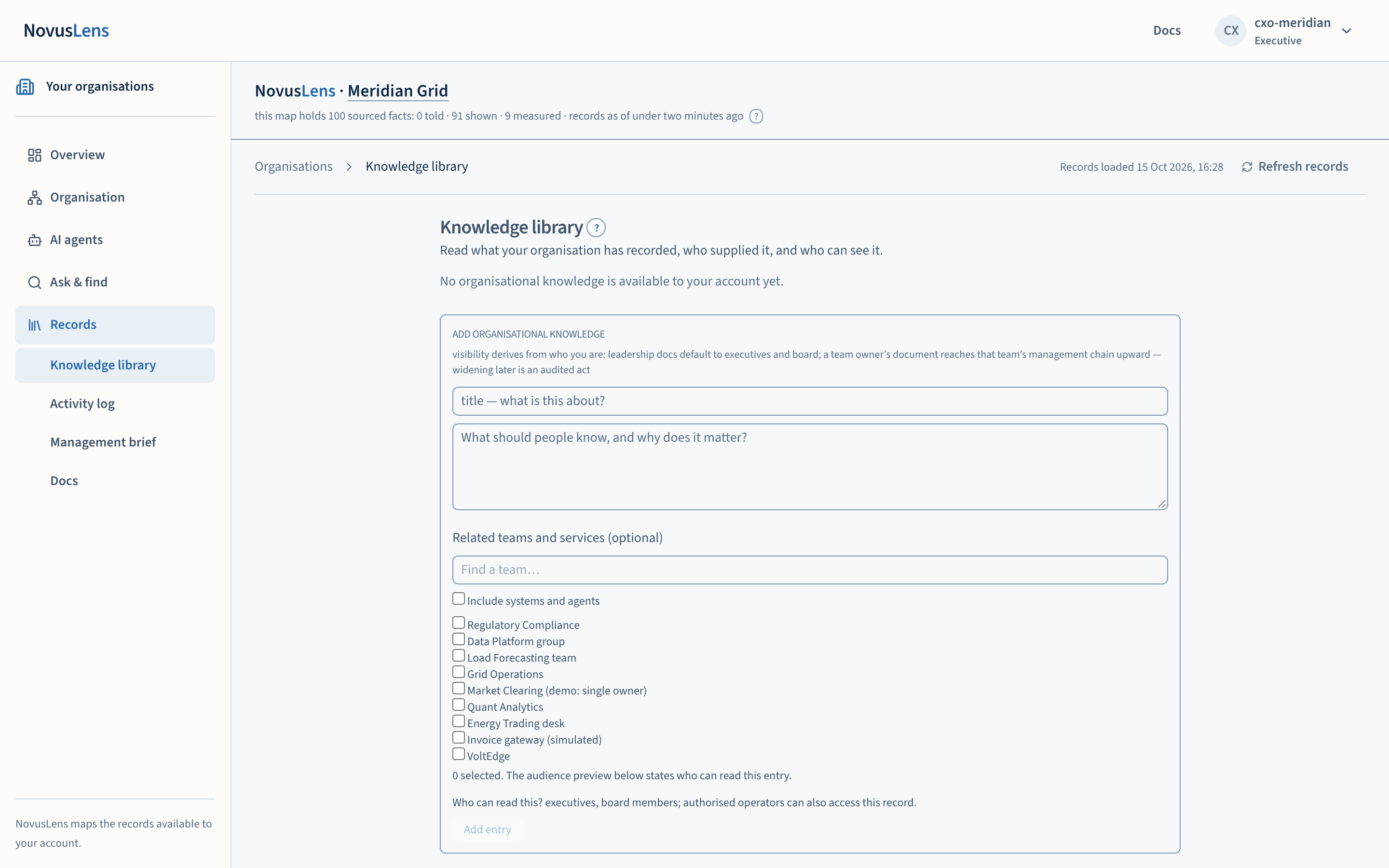
- To add an entry, go to Add organisational knowledge at the foot of the library. This section appears only for roles that may contribute. Enter a title and the text. Optionally choose related teams. Use Find a team to narrow the list, and tick Include systems and agents to show services and agents as well.
- Read Who can read this? before you save. It is the audience preview. It updates as you choose related teams.
- Select Add entry. The button is available once the title and text are filled in and the preview has loaded.
Who can read an entry
Nobody picks an audience by hand. The audience follows from who wrote the entry:
- an entry written at leadership level reaches the executives and the board by default;
- an entry written by a team owner reaches that team’s management chain, upward.
Each line shows the audience as readable labels: Executives, Board, Operators, Team owners, Infrastructure, or the names of the teams. An entry with no audience reads “(nobody — steward only)”. Widening an entry’s audience later is a recorded act, not a silent edit.
Retracting an entry
The author, an executive or an operator sees retract… beside an entry. Board accounts do not. Selecting it opens a short form. Give a reason, which the form asks for as “Why should it never have stood?”, then select Retract it.
A retracted entry disappears from every read. The record keeps who retracted it, when and why. If your role may not retract the entry, the form says “Your role cannot retract this entry.”
What you will see
- A card for each entry the account can read.
- An ILLUSTRATIVE label on any entry that is simulated. Simulated entries demonstrate the product. They are not customer evidence.
- A source link for entries that came from a document.
What it does not do
- It does not decide that an entry is correct. A statement that someone recorded is not an accepted organisational decision.
- It does not change the structural records. An entry that contradicts the mapMapThe view of teams, services and their dependencies for the selected part of the organisation. Details appear beside the map., accountability records or a measurement can be flagged for review. Contradiction checks run on demand; silence does not establish agreement.
- It does not show an entry to a role outside its audience.
When something goes wrong
- “Your role cannot retract this entry.” Only the author, an executive or an operator can retract. Ask one of them.
- “It was not retracted.” The service refused, and the reason follows. Try again, and if it persists, check the activity log for the action.
- “Preview unavailable; try again before saving.” The audience preview did not load. The Add entry button stays disabled until it does. Wait a moment and change the related teams again.
- No add form. The form is not shown to the board role. Read entries, and ask a contributing account to add one.