Bringing structure in, nothing lands unreviewed.
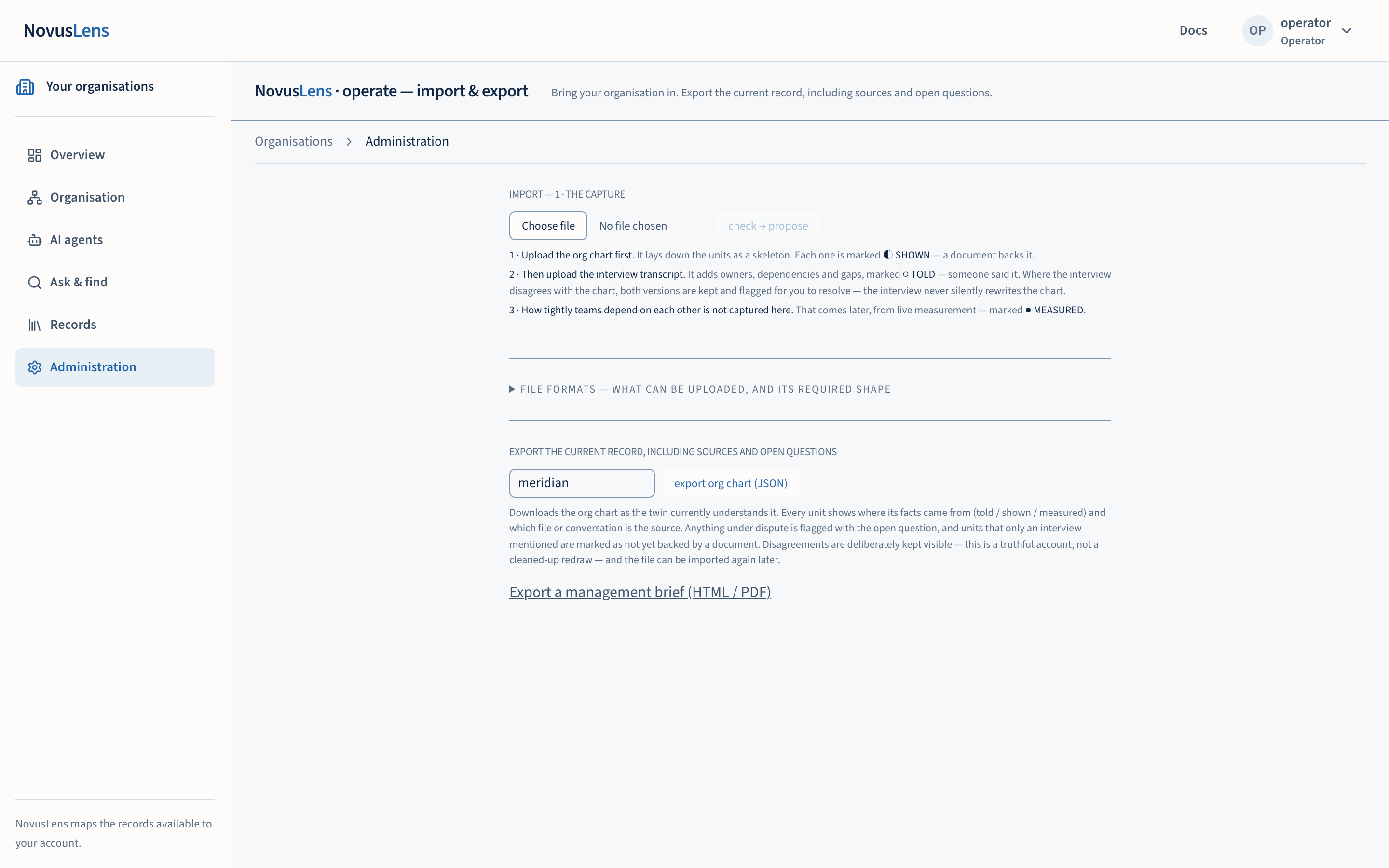
The Administration page is where an operator brings an organisation’s structure into NovusLens, and where anyone who may read the record exports it. An import is always a proposal first. NovusLens reads the file and shows what it would record. Nothing is recorded until a person confirms it. An export shows the org chart as the twinTwinNovusLens’s model of one organisation, built from records about its teams, services and how they rely on one another. It is only as current as those records. currently understands it, with its sources and open disagreements.
What you will achieve
By the end of this page you will be able to:
- tell which roles can import and which can only export;
- bring in an org chart first, then an interview transcript, with each step confirmed;
- resume or discard a proposal you left unfinished;
- export the current org chart as a JSONJSONJavaScript Object Notation: a text format for data, using named fields, lists and values. Configuration files and service messages use it. file, with sources marked on each fact.
Before you start
Administration appears in the navigation only for operator accounts. Other accounts do not see it, and the import steps are not shown to them.
Have the file ready. JSON means JavaScript Object Notation, a text format for named values and lists. The import accepts JSON files in one of three shapes. Each shape is named by what it contains:
| Shape | Required content | What it adds |
|---|---|---|
| Org chart | org and units. Each unit has a unit_id and a name, and may name a parent, a head or be external. | The team structure, each unit marked as shown, meaning a document backs it. It declares no dependenciesDependencyA link where one unit needs something from another. A dependency is not a reporting line: it shows where work relies on something else.. |
| Interview transcript | org and turns, a list of speaker and statement pairs. | Owners, dependencies and gaps, marked as told. Against an existing organisation it challenges the chart instead of rewriting it. |
| Structured upload | org, cells (the units) and edges (the dependencies between them). | Units and dependencies together, marked as shown. |
Working examples of each shape are kept in the repository’s apps/mesh/fixtures/ and apps/connectors/fixtures/ folders.
Steps: import (operators)
- Open Administration.
- Choose the file, using your browser’s file picker, and pick the JSON file. The page reads its shape and says which kind it is, for example “an org chart — it will lay down the team skeleton”.
- Select the button for that kind. It reads check → propose for an org chart or a structured upload. For an interview transcript it reads run the interview → propose.
- Wait for the proposal. An interview runs on the local AI model and takes several minutes. Leave the page open. A progress line shows the turn being read. While the run is in progress the browser asks you to confirm before the tab closes.
- Read the proposal under 2 · The proposal — review before anything lands. For an org chart it lists the units in order. For the other shapes, it lists cellsCellA box on the map that stands for a team, service, supplier or AI agent. It is a unit you can inspect, not necessarily a department or a person., owners and new dependencies. It also lists stated gaps and the documents the import will request.
- If an interview contradicts the chart, the disagreement appears under Contested. Both versions are kept. The chart’s version stays in place until a person resolves it.
- Select Confirm and record to record the proposal, or Discard this proposal to drop it. Nothing is recorded until you confirm.
- When it is recorded, the page says the organisation’s twin is live and links to it. Any disagreements recorded are named.
Import in this order. Upload the org chart first, so that it lays down the skeleton. Then upload the interview transcript, so that it adds owners and dependencies to that skeleton.
Steps: export (any role that can read the record)
- Open your NovusLens address with
/importafter the host and port, for examplehttp://localhost:3111/importfor the default local installation. Operators can also select Administration. The export section is shown to every role, and the server decides what each account may export. - Type the organisation identifier in the box, for example
acme. - Select export org chart (JSON). A file named
<organisation>-orgchart.jsonis downloaded. - Read the line that appears under the button. It gives the number of units, dependencies and open disagreements. It is the same record the twin holds, not a tidied redraw.
Where the organisation is filled in, a link under the export section opens the management brief for that organisation. See the management brief.
What you will see
- Each unit or fact in an export shows whether it is told, shown or measured, and which file or conversation is its source.
- A unit that only an interview mentioned is marked as not yet backed by a document.
- An open disagreement is flagged with its open question in the export.
- An unfinished proposal is offered back to you when you return to the page, with resume it → and discard. The proposal has not been recorded in the twin.
What it does not do
- It does not import anything without a confirm step.
- It does not record how tightly teams depend on each other from an org chart. An org chart says who exists, not who relies on whom. CouplingCouplingA link where one team or service depends on another. Its Loose, Buffered or Rigid class describes the time needed for a handoff. comes later, from measurement.
- It does not resolve disagreements. A person resolves them in the product.
- It does not clean up an export. Disagreements and gaps stay visible.
When something goes wrong
- “unrecognised shape — expected
{org, units}…” The file’s content does not match any of the three shapes. Check the required keys in the table above. - “not valid JSON” The file could not be read as JSON. Check it for a missing comma or bracket.
- “This proposal was recovered without its original file.” The proposal was recovered from an earlier session, and its original file was not kept with it. Re-attach the original file to keep its evidence, or tick commit as told-only. A told-only commit records no document evidence. Confirm and record stays disabled until one of the two is chosen.
- “export failed: …” The export did not complete. Check the organisation identifier, then try again.
- The page shows only the export section. Your account is not an operator. Ask an operator to import, or ask your administrator for the operator role.