Every read and every recorded action, with the account that made it.
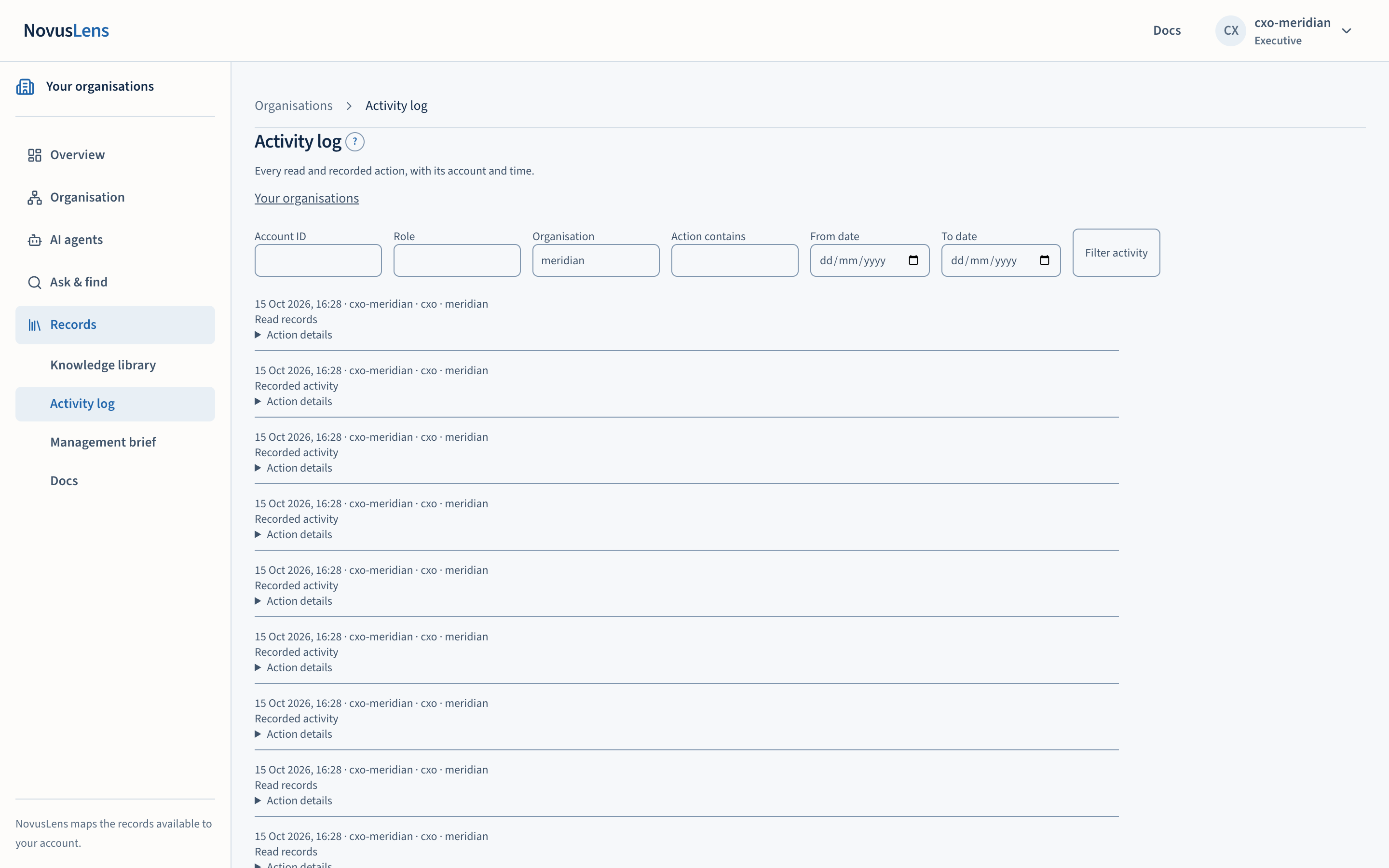
The activity log lists what happened in NovusLens. It shows who read records and recorded actions. Examples include resolving findingsFindingA difference in the records that needs a decision. It includes its sources and can describe a slow handoff, disputed fact or missing owner., recording a challengeChallengeA recorded dispute of a value. Both the original and the disputed version are kept, and the challenge is listed under Findings., attaching documents and asking questions. Each entry gives the account, the role, the organisation and the time. It records actions taken in the product. It does not record what someone did outside it, and it is not a measure of anyone’s performance.
What you will achieve
By the end of this page you will be able to:
- open the activity log for the organisation you are viewing;
- narrow the list to one account, role, organisation, action or date range;
- read what each entry says, and open its raw action;
- understand why some entries are labelled as they are;
- read the message when the log cannot be shown.
Before you start
You need an executive, board or operator account. Other accounts do not see Activity log in the navigation, and opening the page directly returns “Your role cannot read the activity log.”
Sign in and choose an organisation. Select Records, then Activity log beneath it in the navigation.
Steps
- Open the activity log. It shows up to 200 entries for the filters you have set.
- To narrow the list, fill in one or more of the boxes:
- Account ID is the account that acted, for example
cxo-meridian. - Role is the account’s current recorded role when you read the log. The audit entry does not save its role at the time of the action.
- Organisation is the organisation the action concerned. It is filled in from the organisation you are viewing.
- Action contains matches text in the action. Use a short word, such as
brieforretract. - From date and To date limit the entries to a day range. Choose the dates with the calendar control.
- Account ID is the account that acted, for example
- Select Filter activity. The list reloads with your filters applied. Leave all boxes empty to see the full list.
- Read an entry. The first line gives the time, the account, its role and the organisation. The second line says what kind of action it was.
- Select Action details to see the raw action as it was recorded, for a precise reference.
What each entry says
The second line of an entry is one of these labels:
- Read records for a read of records, such as a search or a view.
- Management brief generated for download for a brief download. See the management brief.
- Recorded activity for any other recorded action.
For steward actions, the line names the action and its recorded reason. These include purgesPurgeRemoving a stored document’s contents while keeping a record that it was removed and why. Conclusions that used it must be checked again., retractionsRetractionThe withdrawal of a finding or meaning entry, with the reason recorded. The record keeps who withdrew it, when and why; it is not deleted., deep sweepsDeep sweepAn on-demand review that uses AI models to look for contradictions between written entries and the organisation model, or between written entries. and disputes. Where the action carries a reason, the reason is shown here too, so a retraction of a knowledge entry can show why it was retracted. See the knowledge library.
What you will see
Entries are listed one under another, each separated by a line. The list is capped at 200 entries for each request, so narrow the dates if you need an older window. When nothing matches your filters, the list says “No matching activity.”
The log is for accountability, not for measuring people. An entry shows that a read or an action happened. It does not show why.
What it does not do
- It does not show actions taken outside NovusLens.
- It does not show the content of the records that were read.
- It does not rate an account’s work.
- It is not open to team owners. A receipt that confirms an action appears where that action was recorded, and it stays until dismissed.
When something goes wrong
- “Your role cannot read the activity log.” Your account is not an executive, board or operator account. Ask your administrator for access if you need it.
- “The activity log is unavailable. Please try again.” The log service did not answer. Try the filter again in a moment.
- “Sign in to read the activity log.” Your session has ended. Sign in again.
- “No matching activity.” Nothing matches the filters you set. Remove a filter, or widen the dates.