Read the dependencies, before you decide anything.
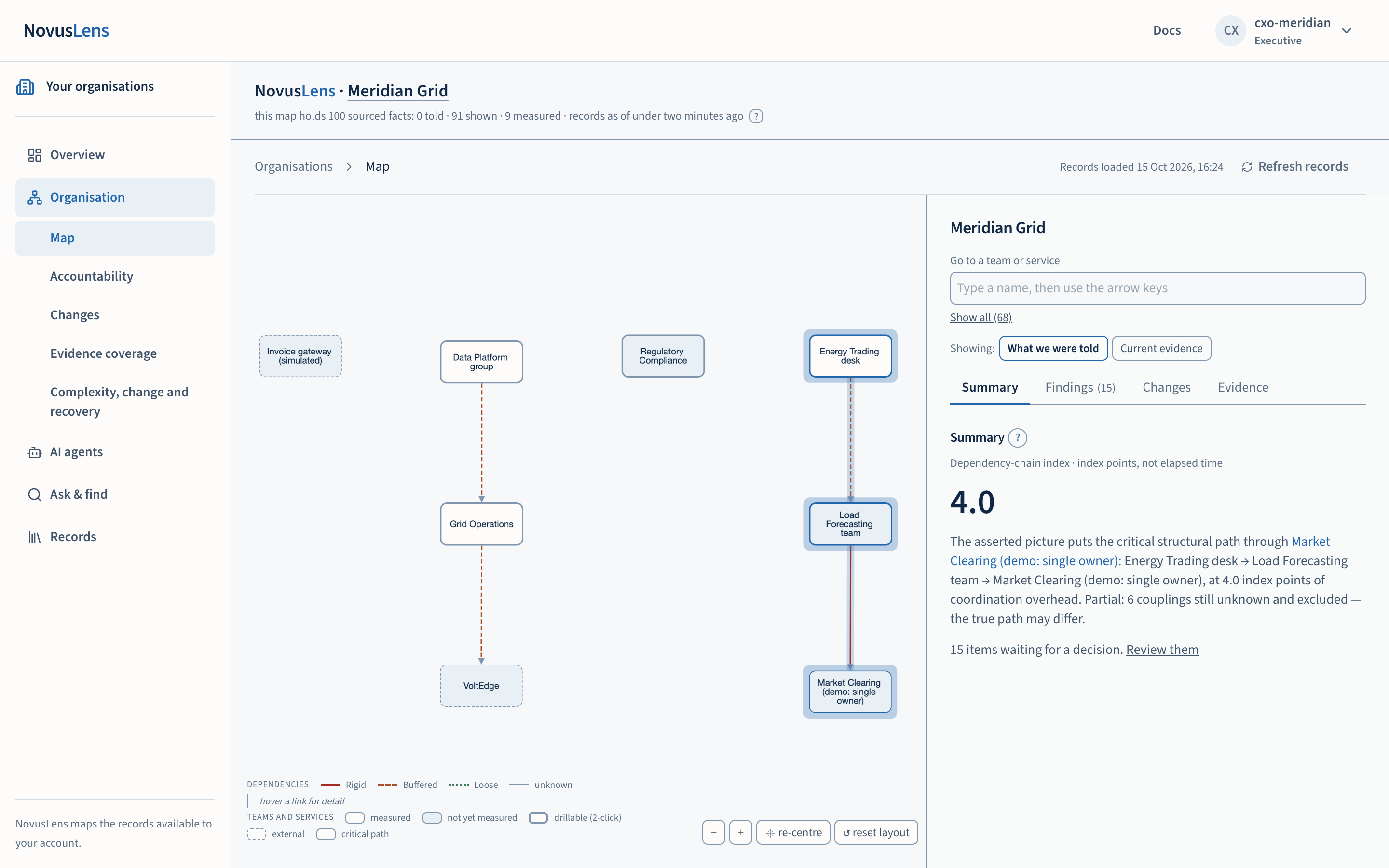
The organisation mapMapThe view of teams, services and their dependencies for the selected part of the organisation. Details appear beside the map. shows the teams, services, suppliers and AI agents in one organisation, and how they depend on each other. Use it to find where work waits on another unit and inspect the supporting records. Take those records to the people responsible.
What you will achieve
By the end of this page you will be able to:
- find a team or service on the map and open its context;
- tell the dependencyDependencyA link where one unit needs something from another. A dependency is not a reporting line: it shows where work relies on something else. classes apart and see what each line is based on;
- read the four tabs of the panel (Summary, FindingsFindingA difference in the records that needs a decision. It includes its sources and can describe a slow handoff, disputed fact or missing owner., Changes and Evidence) for one team or for the whole organisation;
- switch every value between what the organisation told NovusLens and what current evidenceCurrent evidenceA view that uses only measurements recent enough to count. The “What we were told” view uses recorded statements instead. shows;
- share a link that opens the same team, tab and evidence view.
Before you start
Sign in and choose an organisation. Then select Organisation, followed by Map beneath it in the navigation. The page opens on the whole organisation. If the organisation has no records yet, the page says so and offers import instead of an empty map.
The map is built from records that someone has stated, a document has shown or a connected source has measured. Anything without a record stays blank. Read the blanks as questions to investigate, not as proof that nothing exists.
Steps
1. Find a team or service
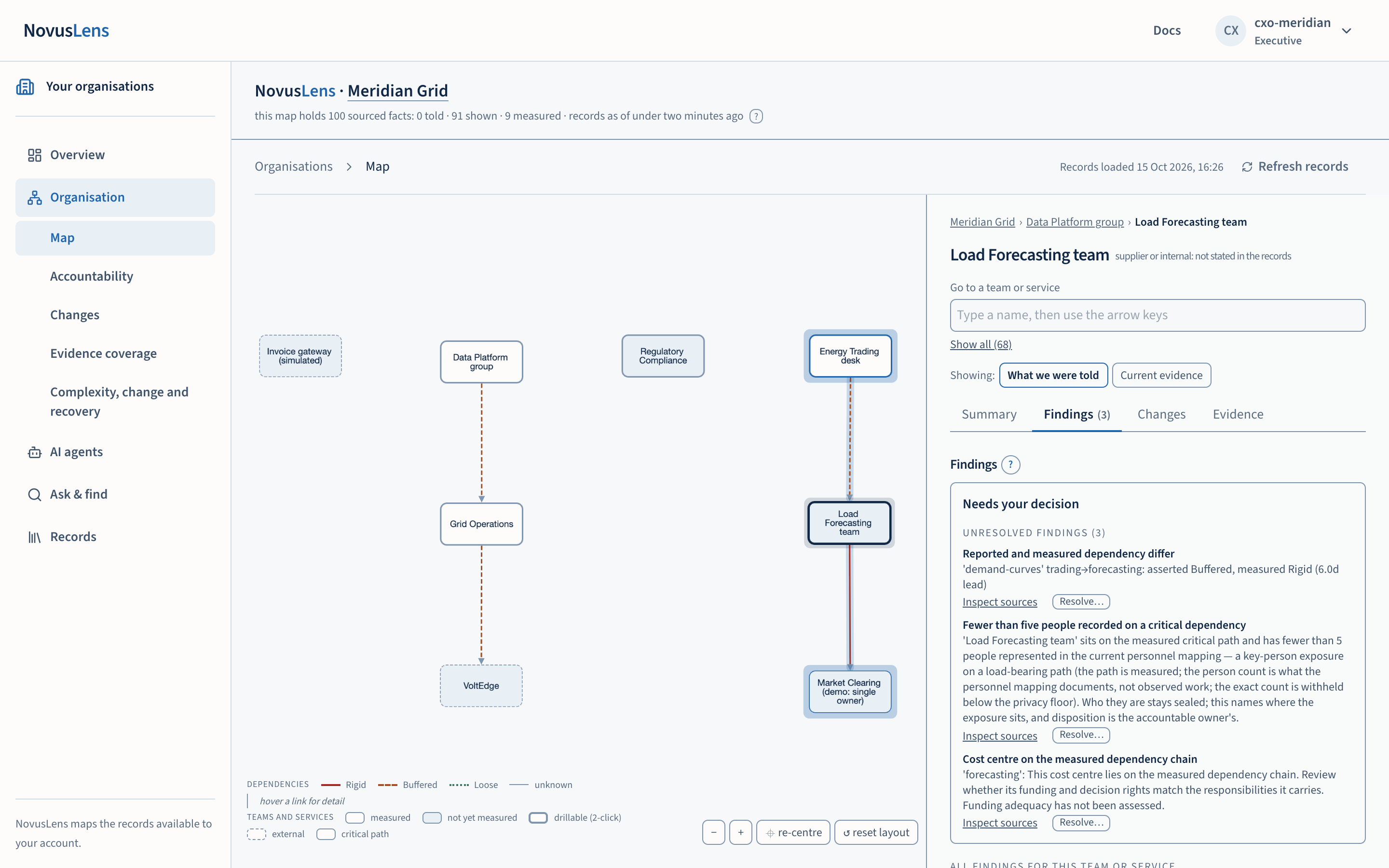
Type a name into Go to a team or service, at the top of the right-hand panel. Use the arrow keys to move through the matches and Enter to choose one. Select Show all to open the full list, grouped into Teams, AI agents and Systems and services.
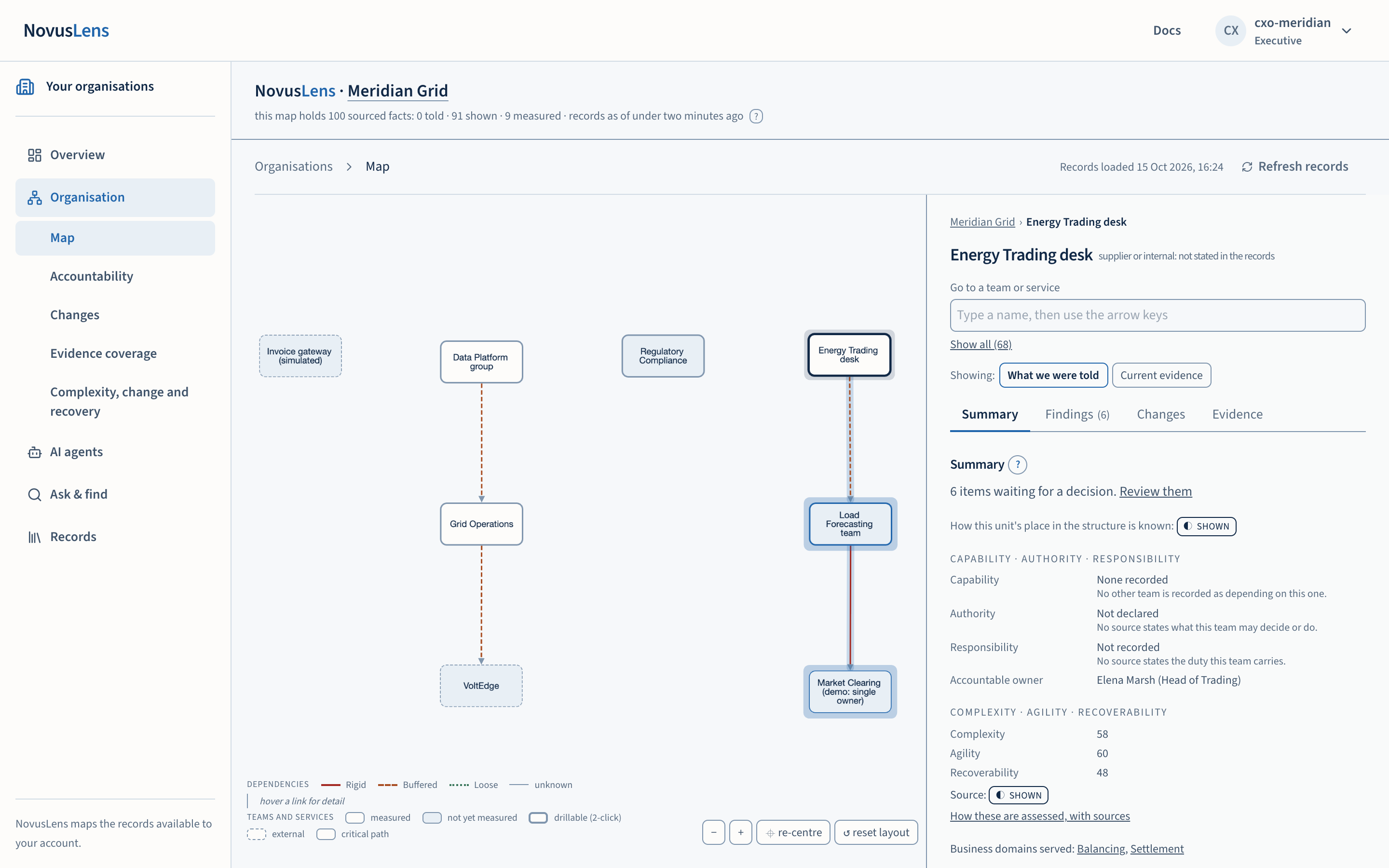
You can also select a box on the map. Selecting a box changes the panel, and a line near the top of the panel shows where you are. Select Meridian GridMeridian GridThe fictional demonstration organisation used by the demonstration walk and its sample data. Nothing about Meridian Grid describes a real company. in that line to return to the whole organisation.
2. Read the lines and boxes
Each line is a dependency between two units. Its style and colour show its recorded class:
| Line | Class | Meaning in the legend |
|---|---|---|
| Solid red | RigidRigidA handoff that takes more than four days. It adds 3 points to the dependency-chain index. | A dependency the records class as Rigid. |
| Dashed amber | BufferedBufferedA handoff that takes more than one day and up to four days. It adds 1 point to the dependency-chain index. | A dependency the records class as Buffered. |
| Dotted green | LooseLooseA handoff that takes about one day or less. It adds 0.5 points to the dependency-chain index. | A dependency the records class as Loose. |
| Thin grey | Unknown | No source has stated or measured the class. |
The word for the class appears on lines touching the selected unit and on the critical pathCritical pathThe dependency chain with the greatest total coordination weight in the map. It identifies a structural constraint. It does not state elapsed time.. Hover a line for its detail, or tap it on a touch screen to keep that detail open.
Each box also carries a fill and a border. A measured team has a light fill. Grey means its Agility and RecoverabilityRecoverabilityThe R in C/A/R: how well a team or service restores acceptable service after a failure. Recovery times and tested alternatives can supply evidence. are not yet measured; it is a neutral state, not a health rating. A dashed border marks an external party outside the organisation. A thicker outline marks a box that holds units inside it, which you can open with a double-click. A glow marks the critical path: the dependency chain with the largest total weight in the selected model.
A line is a dependency, not a reporting line. It does not say who manages whom, and it does not assign accountability.
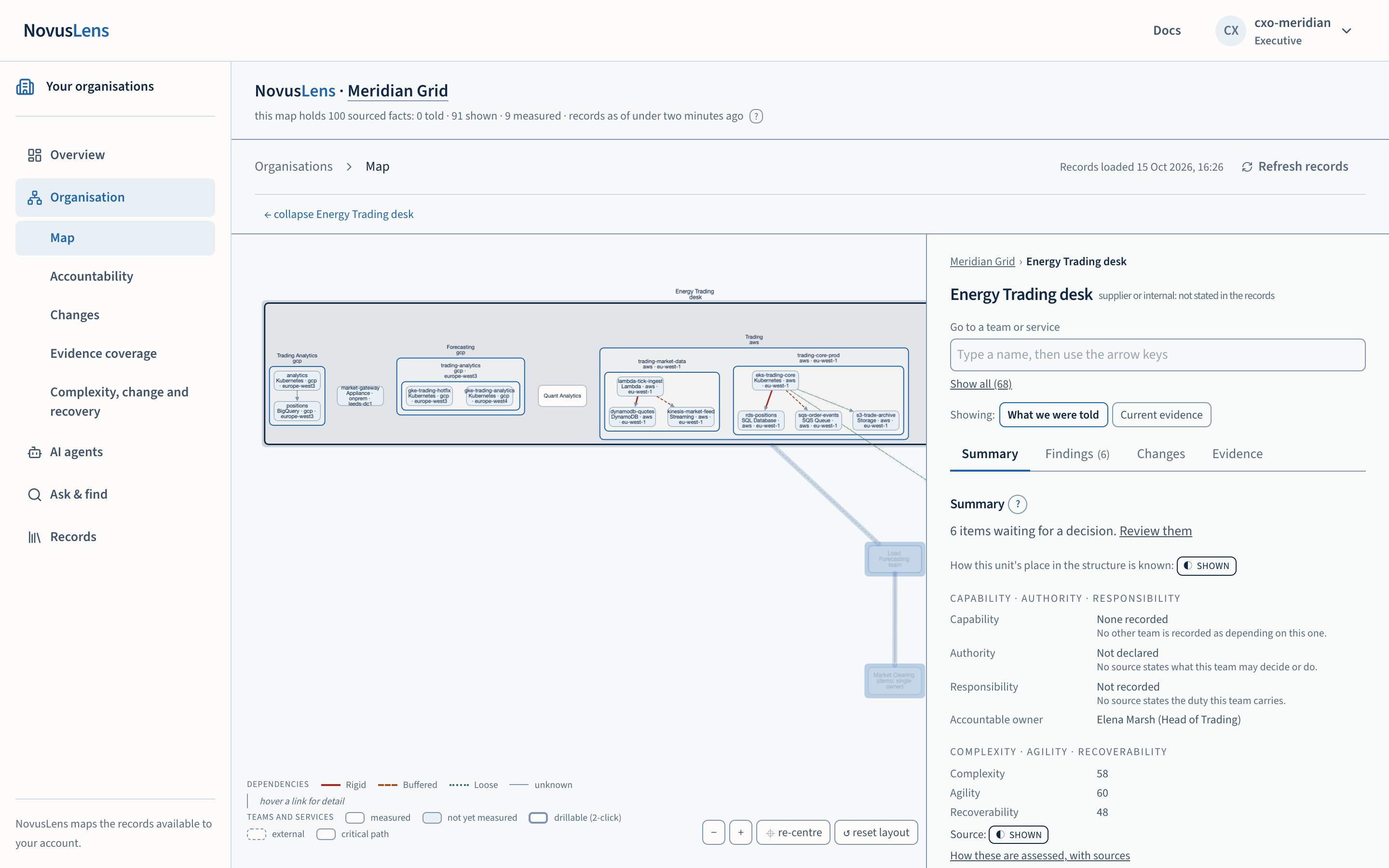
3. Select, then drill
Selecting and drilling are separate actions:
- Select a box with a single tap or click. The panel changes to that unit’s context.
- Drill into a box with a double-click (or a double-tap). The box opens in place, showing the units inside it, and the rest of the map fades. You can also choose Show the units inside it in the Summary tab.
- Collapse the drilled box with the link ← collapse above the map, or Hide the units inside it in the Summary tab.
- Deselect with Escape, or by tapping an empty part of the map.
4. Move around the map
Use + and − to zoom, which is useful for a dense system diagram. Select re-centre to bring the whole map back into view at its default size. Select reset layout to put every box back where the automatic layout places it, after you have dragged some of them.
5. Use the four tabs
The panel has four tabs. They are the same for the whole organisation and for every team or service. The tab you choose is kept in the address, so a link you share opens on the same tab.
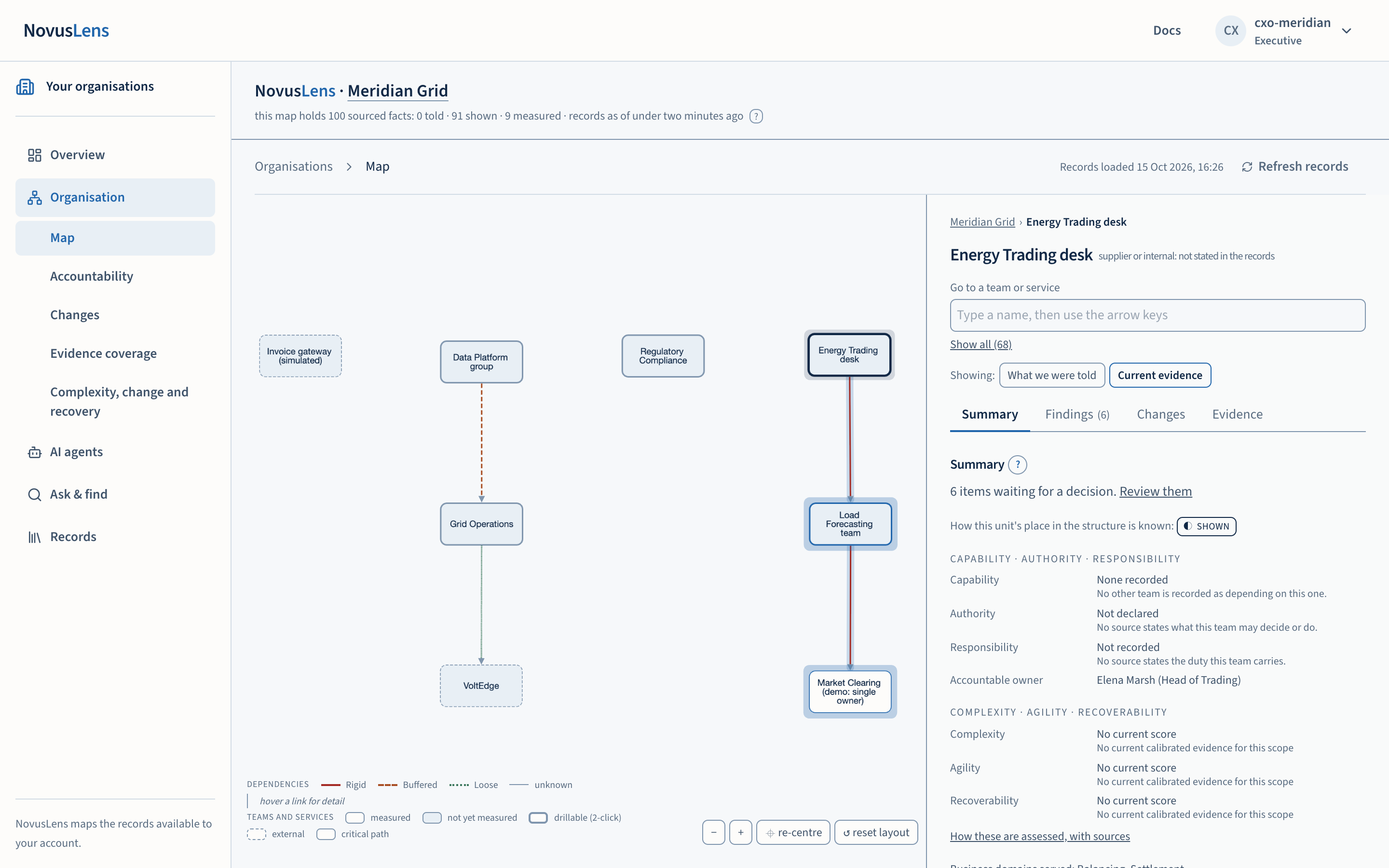
Summary. For a team, it shows its accountable ownerAccountable ownerThe person recorded as answerable for a team, service or agent. NovusLens does not assume that this person is also the one who runs it day to day., authority, responsibility and Complexity, Agility and Recoverability (C/A/RC/A/RThree separate scores for a team or service: Complexity, Agility and Recoverability. Each uses current evidence and the customer’s stated scoring rules.) scores. Complexity, Agility and Recoverability are calibrated indicators; each one has its own calculation and sources. A blank value always says why it is blank: “Not recorded” means no source says it, not that the answer is no. For the whole organisation, the Summary shows the dependency-chain index and how many items are waiting for a decision.
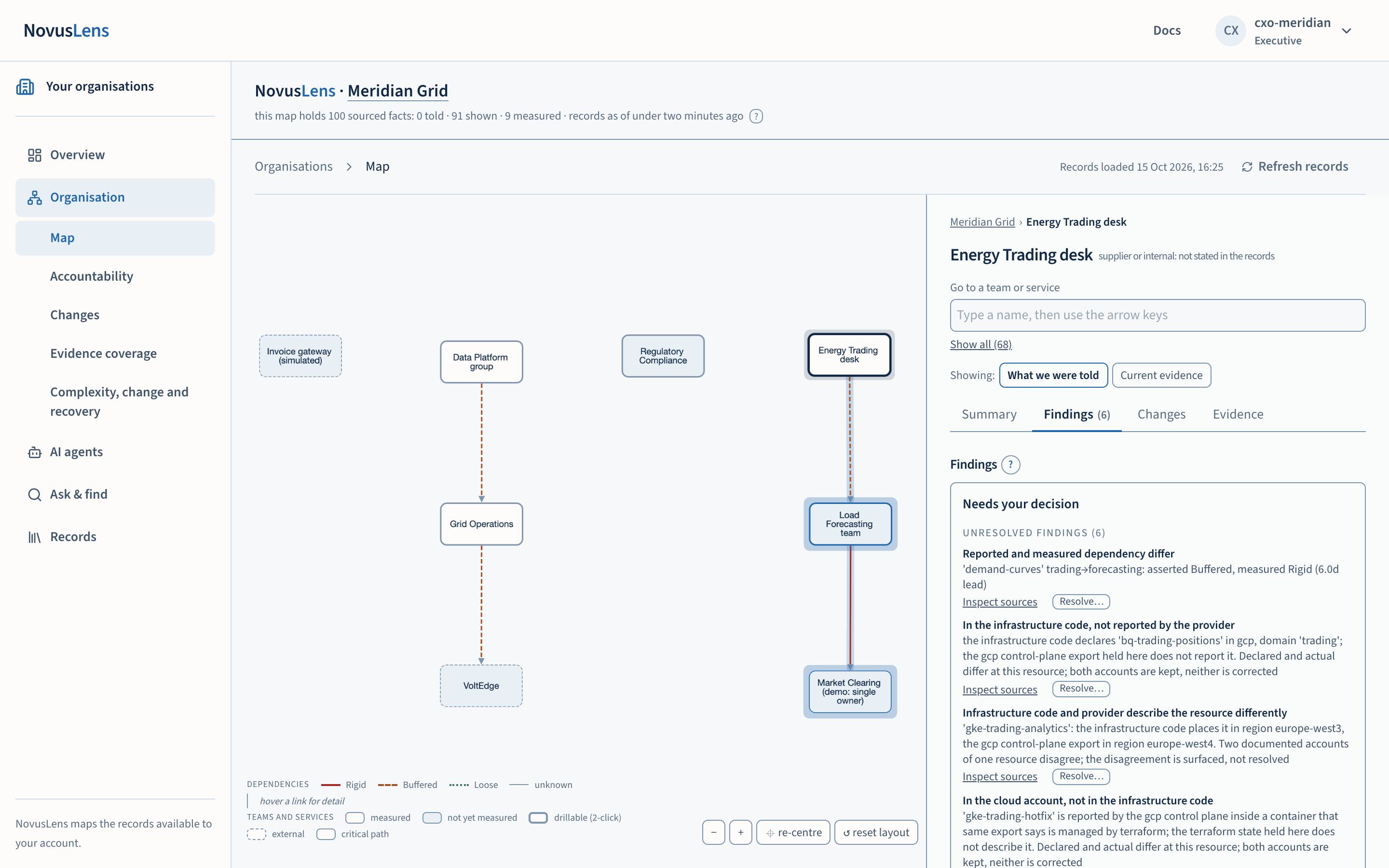
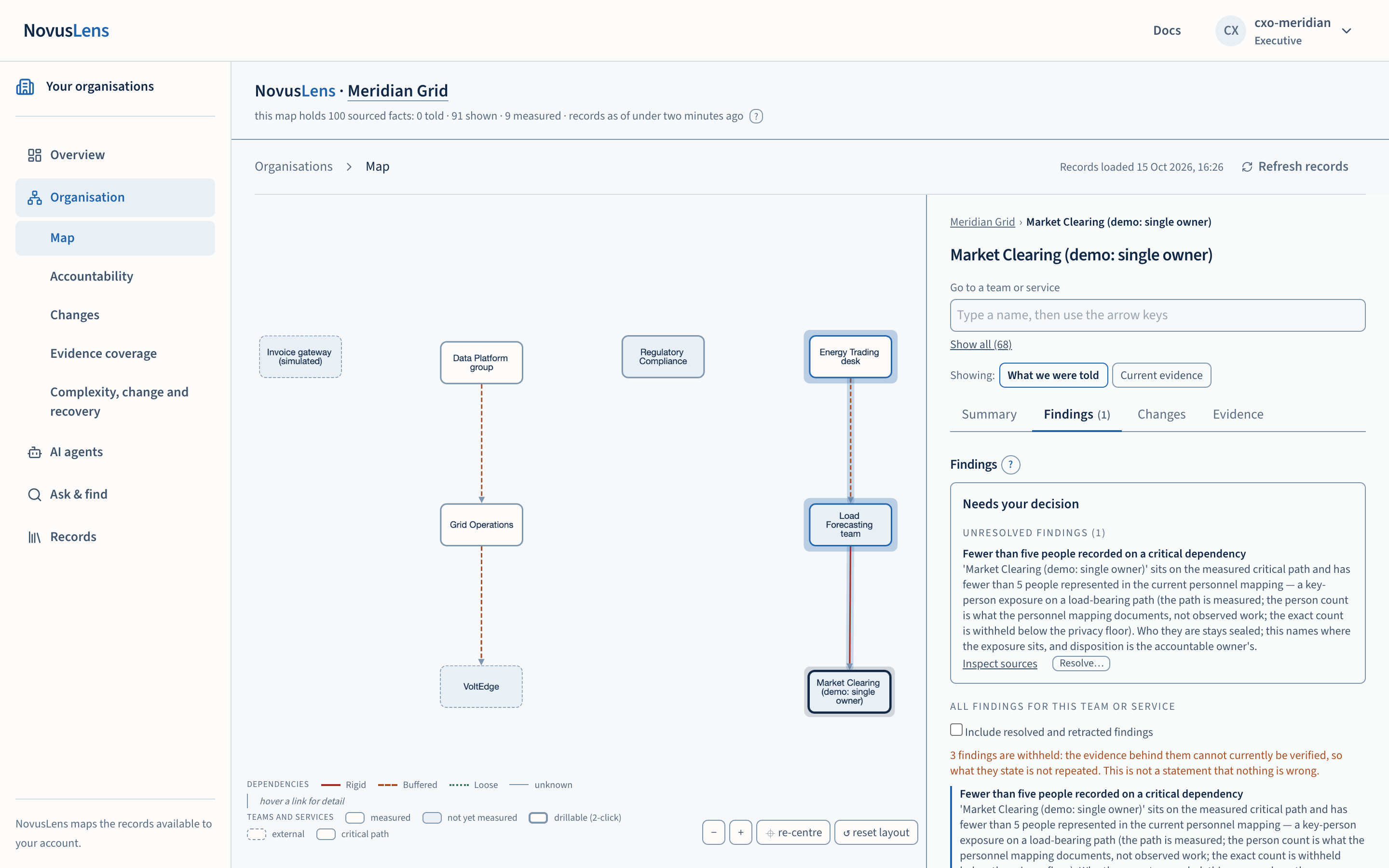
Findings. The tab opens with Needs your decision. It lists unresolved findings, open challenges and requested evidence. Each item shows its sources and the actions open to your role, such as Inspect sources and Resolve…. Below it, All findings for this team or service lists everything else. Tick Include resolved and retracted findings to see those too. The number beside the tab name counts the items waiting for a decision.
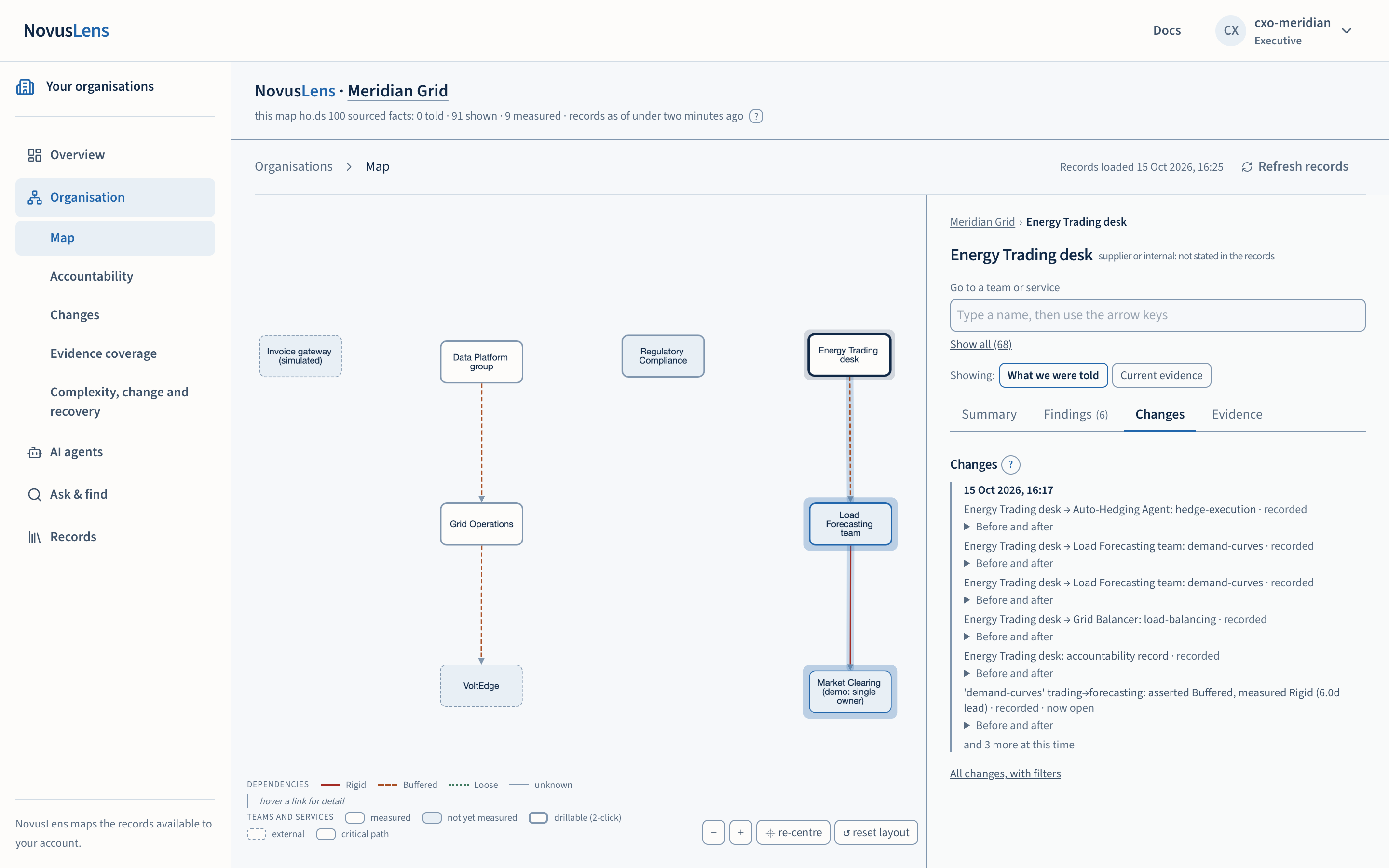
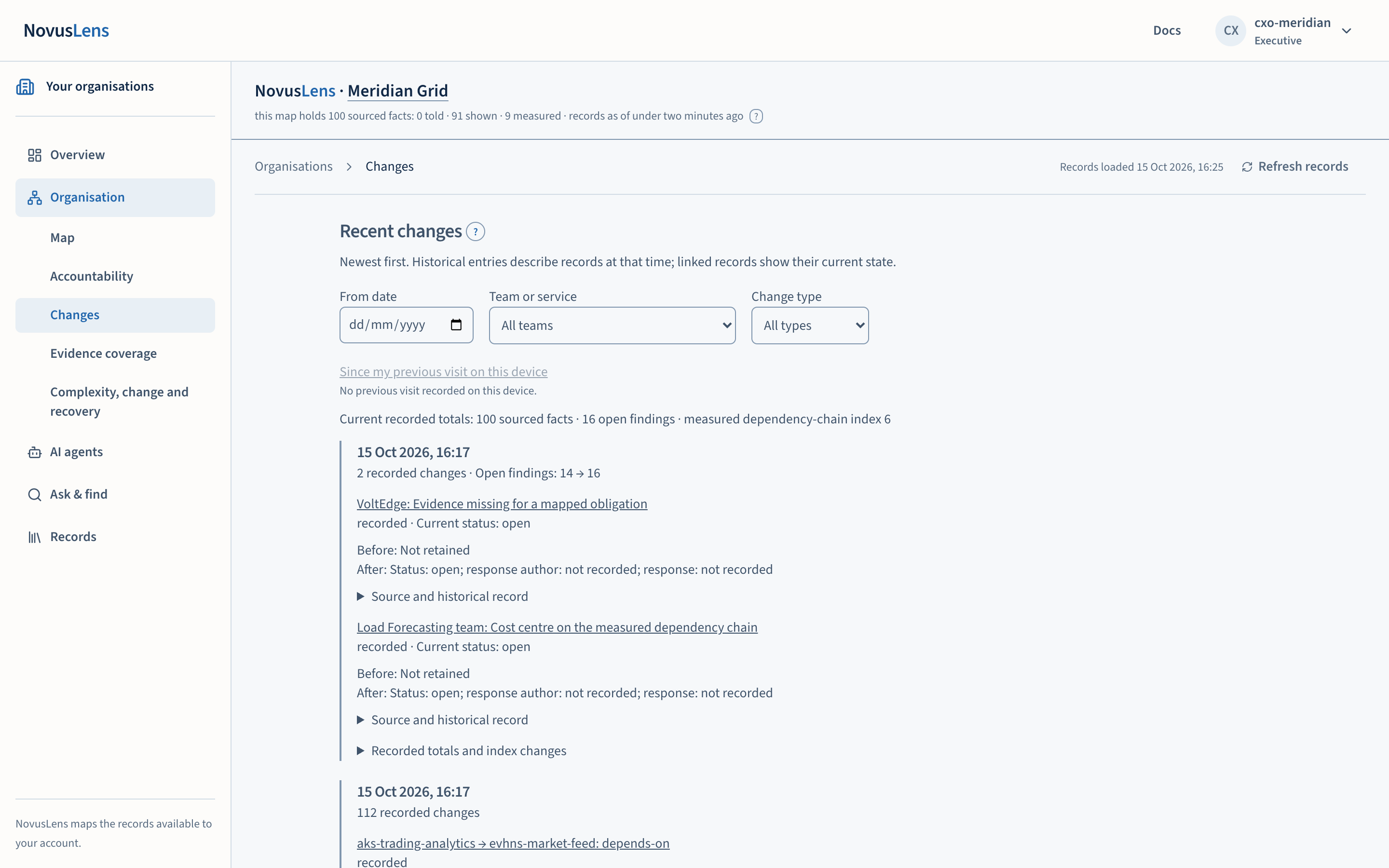
Changes. The most recent changes come first, limited to twelve entries. Each one shows when it happened, what moved and its change type. Select Before and after to see the values on either side of the change. Select All changes, with filters to filter by date, team or change type.
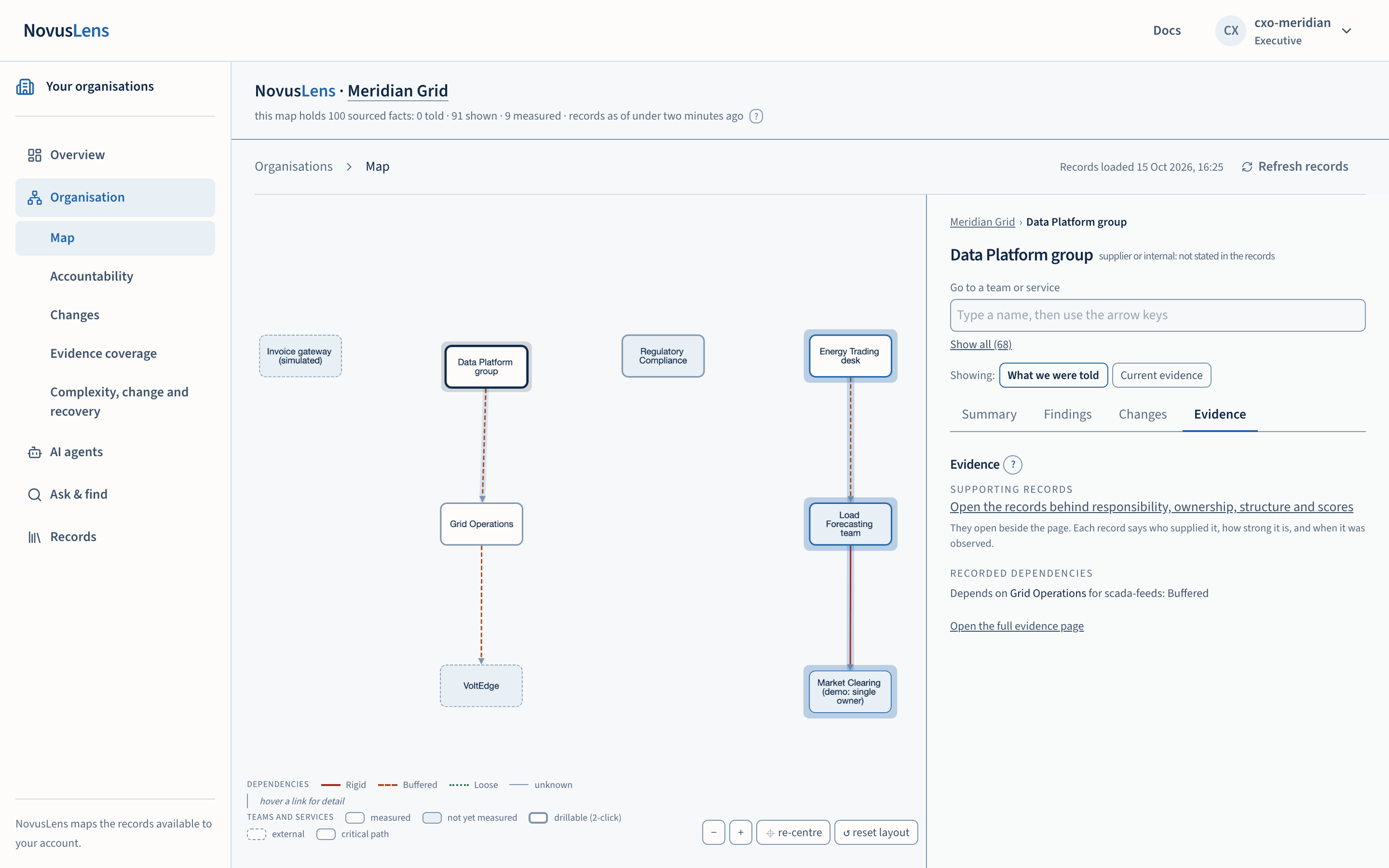
Evidence. For a team, it opens the supporting records beside the page, and lists the dependencies on and from this unit. Each dependency says whether the handoffHandoffWork or information passed from one team or service to another. Its measured or stated completion time determines the dependency class. is known. For the whole organisation, it counts told, shown and measured facts. It links to evidence coverageCoverageWhat the available records cover, and what is missing. A count such as “3 of 5 dependencies measured” names the measured portion and the gap. team by team.
6. Choose what you are looking at: told or current evidence
Above the tabs, Showing switches between What we were told and Current evidence. The switch changes the scores in the Summary, the lines on the map and the records in the Evidence tab. A score that nobody recorded stays blank in both views. Where a current score exists but its calibrationCalibrationThe customer's own rule that turns raw figures, such as a gauge, a workflow history or an incident log, into a C/A/R score. A score moves when the calibration moves, and the change is recorded. does not, the panel shows “No current score” with the reason.
7. Use the critical path and the index
The dependency-chain index, also called critical path lengthCPLCritical path length. The total coordination weight of the longest chain of dependencies in the model. NovusLens reports it as index points, not elapsed time. (CPL), is a weighted structural score for the longest chain of dependencies in the selected view. Loose adds 0.5 index pointsIndex pointsThe unit of the dependency-chain index. Index points are structural weights, not hours or money, and every answer and what-if reports the index in them., Buffered adds 1 and Rigid adds 3. Unknown dependencies are excluded, and the panel says how many. The index is in index points, not hours or money. Read measured lead timesLead timeThe elapsed time between starting a request or handoff and completing it. on the Evidence tab of the relevant dependency.
8. Share a view
The address records the selected team, the drilled unit, the tab and the told or current view. Copy it to share the same view. The recipient still needs access to the records.
What you will see
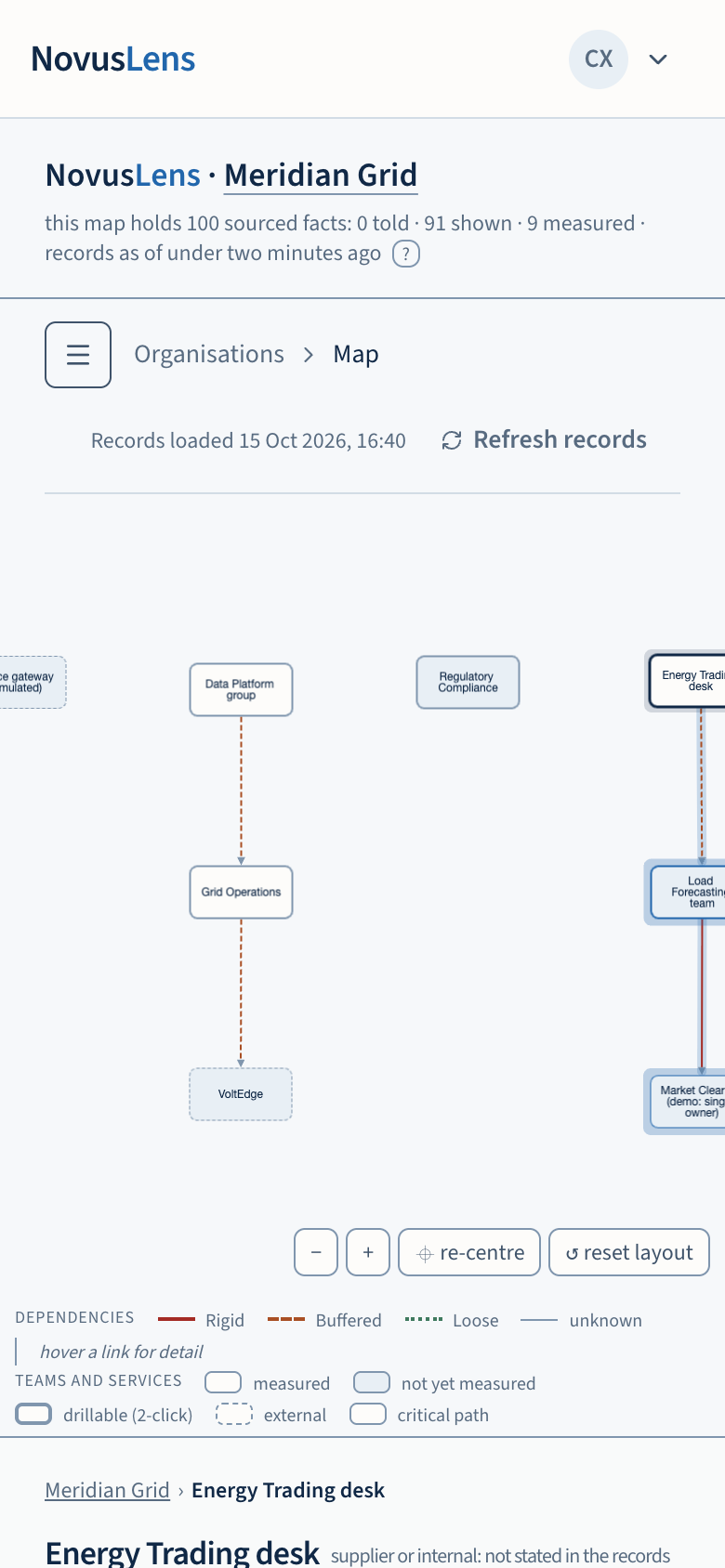
- A map with boxes, coloured lines and a legend along the bottom.
- A panel on the right. On a narrow screen the panel sits below the map.
- A status line above the map gives the records’ load time and refresh interval, with Refresh records beside it. Evidence dates stay separate from this timestamp.
What it does not do
- A dependency line is not a reporting line and does not assign accountability.
- The index is a structural measure. It is not elapsed time or cost, and it does not measure future delay.
- A missing measurement is shown as unknown. It is never filled in by inferenceInferenceThe work a language model does to produce an answer from its instructions and input..
- An empty list of findings means nothing in your records is waiting for a decision. It does not establish that nothing is wrong.
When something goes wrong
- A box or line you expect is missing. Your role may not see that part of the organisation, or the records for it are not loaded. Check the records status line, then select Refresh records. If the organisation is still empty, the page says so and links to import.
- The panel says a value is “Not recorded” or “No current score”. No source supplies it, or the current calibration is missing. Open the Evidence tab to see what exists.
- A finding appears to be about a team you cannot see. Findings that touch a team outside your view are worded from your side, and the other team is not named.
- The page shows a withheld finding count. The evidence behind those findings cannot currently be verified, so their content is not repeated. The count is not a statement that nothing is wrong.