Sign in, then choose an organisation.
You sign in with an account ID and a passphrase. Your account decides which organisations and records you can see. A name typed into a web address does not change that. Once you are signed in, you choose one organisation and NovusLens opens its overview.
What you will achieve
- Sign in with your account.
- Check who you are signed in as, which organisation you are in and which role you hold.
- Choose an organisation and open its overview.
- Sign out before you switch to another account.
HTTPSHTTPSHTTP carried over an encrypted connection, so the contents are protected while travelling between the caller and the server. is the encrypted form of Hypertext Transfer Protocol, the rules used for web requests. A session cookieCookieA small value a browser keeps and sends back to a website. NovusLens uses a signed cookie to remember the signed-in account. lets the browser identify your signed-in account.
Before you start
- You need an account ID and a passphrase. On a customer deployment, the sign-in page says to contact your administrator if you need an account. In a development environment, the page refers you to demonstration accounts that your operator supplies.
- Open the address your administrator gave you. For access through a declared secure proxy, use the HTTPS address your administrator gave you. Local sign-in can use HTTPHTTPHypertext Transfer Protocol: the rules a browser or program uses to send a request to a web service and receive its response. when no secure proxy is declared.
- Your browser must keep the session cookie. If it does not, the organisations page says so and asks you to allow cookies for the site, then sign in again.
Steps
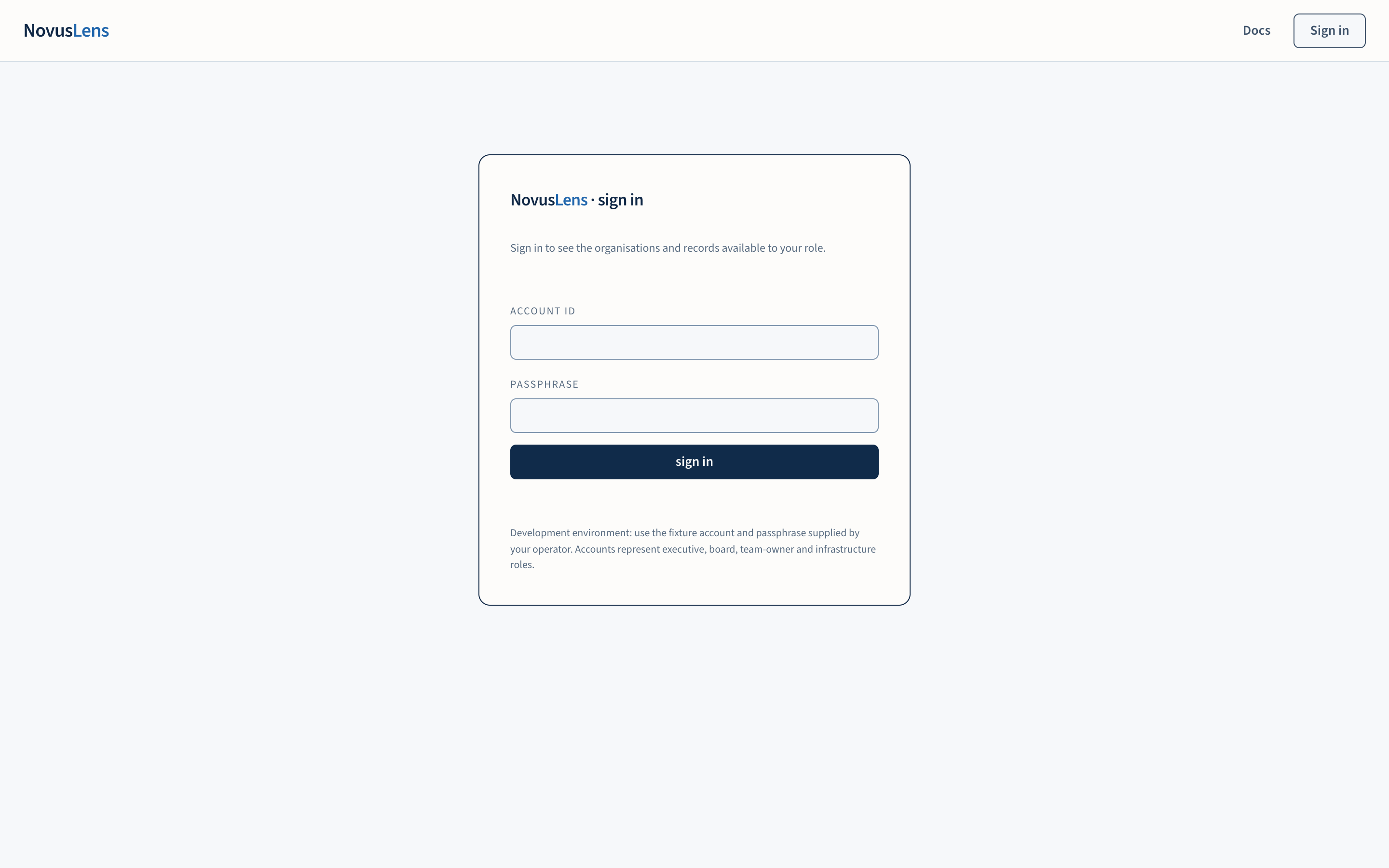
- Open the sign-in page. Its heading reads NovusLens · sign in.
- Enter your account ID in Account ID and your passphrase in Passphrase.
- Select sign in. The page confirms the sign-in and takes you to your organisations.
- Select the organisation you need. Each entry on the list has an open link. The organisation’s overview opens.
To sign out, open Account menu and select Sign out. You can also use sign out on the sign-in page when a session is already present.
What you will see
The account menu
Select Account menu at the top of any page to see your account ID, organisation and role. The role labels are:
| Label in the account menu | Role |
|---|---|
| Executive | Executive accounts |
| Board · read only | Board accounts |
| Team owner | Accounts that own a team |
| Operator | Operator accounts |
| Infrastructure | Infrastructure accounts |
Operator accounts also see Administration and Operator diagnostics in the menu. Diagnostics opens troubleshooting details. Recent, beside the account menu, re-opens receipts recorded in this session. Sign out ends the session.
Your organisations
The organisations page is headed NovusLens · your organisations. It opens with a Start here panel. The panel plays the User Manual’s eight-minute tutorial, and the User Manual is linked directly below the video. If you have just installed NovusLens, start there.
Below the panel, the page lists each organisation your account can access. Each card names and describes the organisation. It counts units, facts at each evidence level and open findingsFindingA difference in the records that needs a decision. It includes its sources and can describe a slow handoff, disputed fact or missing owner.. Where your account can see organisation groups, they appear first, with the number of organisations and regions in each group.
Operator accounts also see Import an organisation. Other roles do not. (A twinTwinNovusLens’s model of one organisation, built from records about its teams, services and how they rely on one another. It is only as current as those records. is NovusLens’s own model of one organisation.) If no organisation is loaded or visible to you, the page says No twins yet. An operator can import one from there.
Roles
Each role sees a different set of pages. Pages beneath each destination appear only when your role may open them.
| Role | What it is for | What it can see beyond the common pages |
|---|---|---|
| Executive | Leaders who review the organisation | Complexity, change and recovery, and the Activity log |
| Board · read only | Board members who read records and explore questions | Complexity, change and recovery, and the Activity log. Recording actions are not offered. |
| Team owner | Owners of a team | The common pages. Complexity, change and recovery and the Activity log are not shown to this role. |
| Operator | People who maintain the installation | Everything above, plus Administration |
| Infrastructure | Infrastructure accounts | The common pages |
The board role is read only. The meaning panel, for example, offers no write actions to the board. Board accounts read records and explore questions, but do not change organisational records.
Sign out and session length
A session lasts 12 hours. After that, you sign in again. Selecting Sign out removes the session cookie and returns you to the sign-in page. Sign out before you switch roles, because the account menu names the account that is signed in. A viewer name typed into a link does not override the signed-in account.
When something goes wrong
- Sign-in refused. The message reads: sign-in refused, the viewer and passphrase pair does not check out. NovusLens gives the same answer for a wrong passphrase and for an unknown account, so it does not reveal which half failed. Check both fields and try again.
- Too many sign-in attempts. After five failed attempts for one account, or from one address, within ten minutes, sign-in is blocked for that account or address. The message asks you to wait ten minutes and then try again.
- Plain HTTP refused. The message asks you to use the https address your administrator gave you.
- Sign-in accepted, but the browser did not keep it. The organisations page explains that the browser refused to store the session. Allow cookies for the site, or use the https address, then sign in again.
- Access refused. The page reads: your account does not have access to this organisation. If you need it, ask your administrator. It offers a link back to your organisations.
- Records erased. If an organisation’s records were erased, the page says so, with the date of erasure, and offers the same link back to your organisations. Erasure is final.
- Organisation cannot load. The page reads: we cannot load your organisation right now. Select Try again to reload. If the problem continues, the page shows a support reference, or organisation-unavailable when no reference is available. Share that reference with your administrator. The page does not show connection details or raw error text. A failure to load is not evidence that your passphrase was wrong.
Operators find the event for a support reference in the user interface server logs. Before retrying, they check the database and the reasoning service’s health endpointEndpointA particular address on a service that accepts a defined kind of request..